Learning Management System (LMS) User Guides
Welcome to the School Smart Management System (SSMS) – Learning Management System (LMS).
This platform is designed for schools, teachers, and students to manage digital learning efficiently — from structured study materials to assessments and performance tracking.
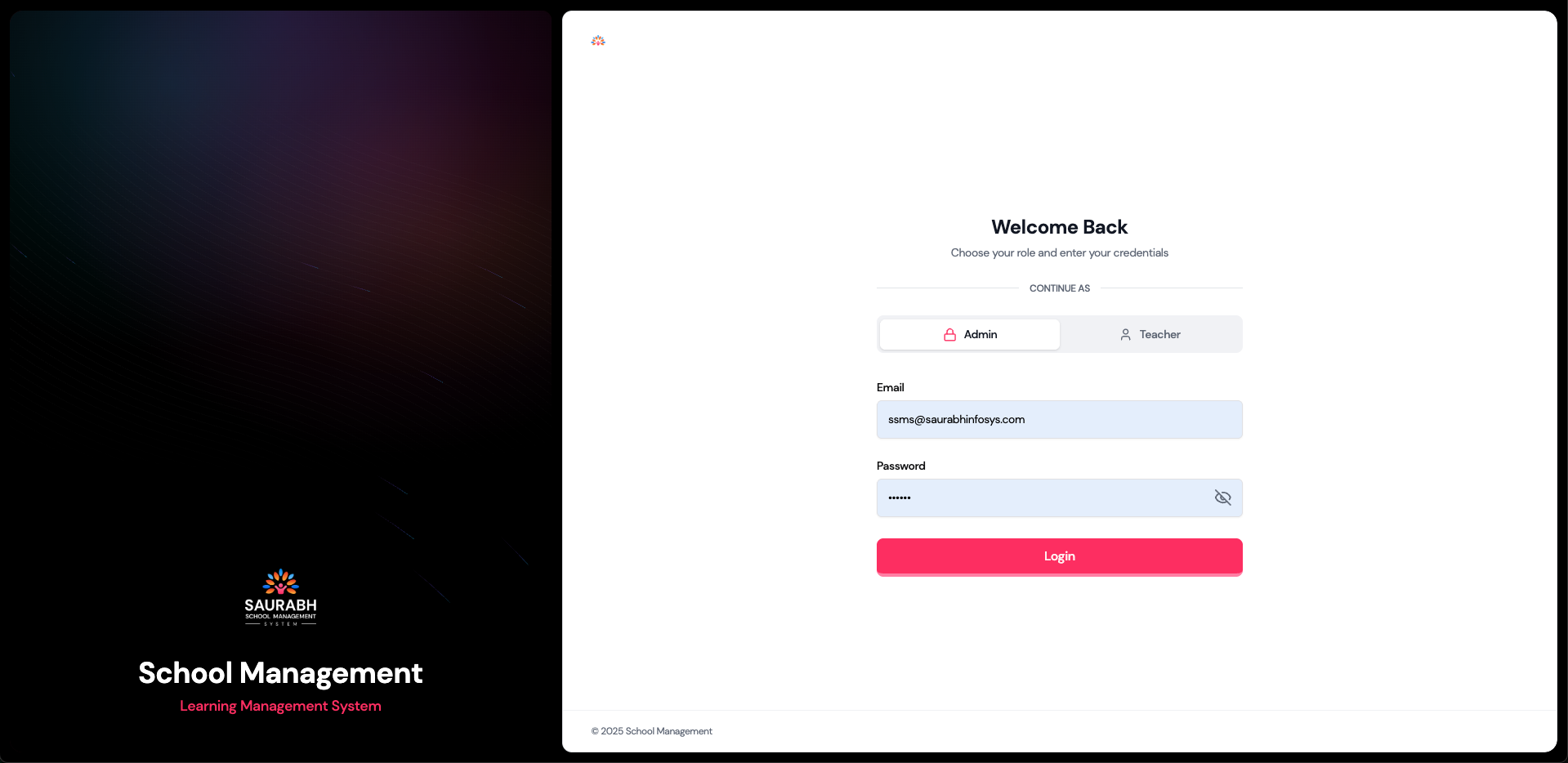
🎯 Purpose of SSMS LMS
SSMS LMS helps schools deliver organized, role-based digital education by:
- Structuring academic content class-wise and subject-wise
- Providing controlled access for Admins, Teachers, and Students
- Enabling learning through videos, documents, audio lessons, and quizzes
- Tracking student progress and academic performance
🧭 Role Permissions
| Feature | Admin | Teacher | Student |
|---|---|---|---|
| Login Dashboard | ✅ | ✅ | ✅ |
| Manage Teachers & Access | ✅ | ❌ | ❌ |
| Manage Classes & Subjects | ✅ | ✅ | ❌ |
| Create Units, Topics | ✅ | ✅ | ❌ |
| Upload Materials | ✅ | ✅ | ❌ |
| Create Quizzes | ✅ | ✅ | ❌ |
| Take Quizzes | ❌ | ❌ | ✅ |
| View Reports | ✅ | ✅ | ✅ (own only) |
📊 Dashboard Overview
The Dashboard is the first screen users see after logging in. It provides a quick summary of learning activity, performance, and key statistics based on the user’s role.
1. 👑 Admin Dashboard
The Admin Dashboard provides a complete overview of the entire school system.
Admins can view:
- 🏫 Total Classes & Sections
- 👨🎓 Total Students
- 👨🏫 Total Teachers
- 🌟 Top Performers across the school
- 🕒 Recent Activities (system-wide)
- 📊 Class Performance overview
- 📉 Student Performance analytics
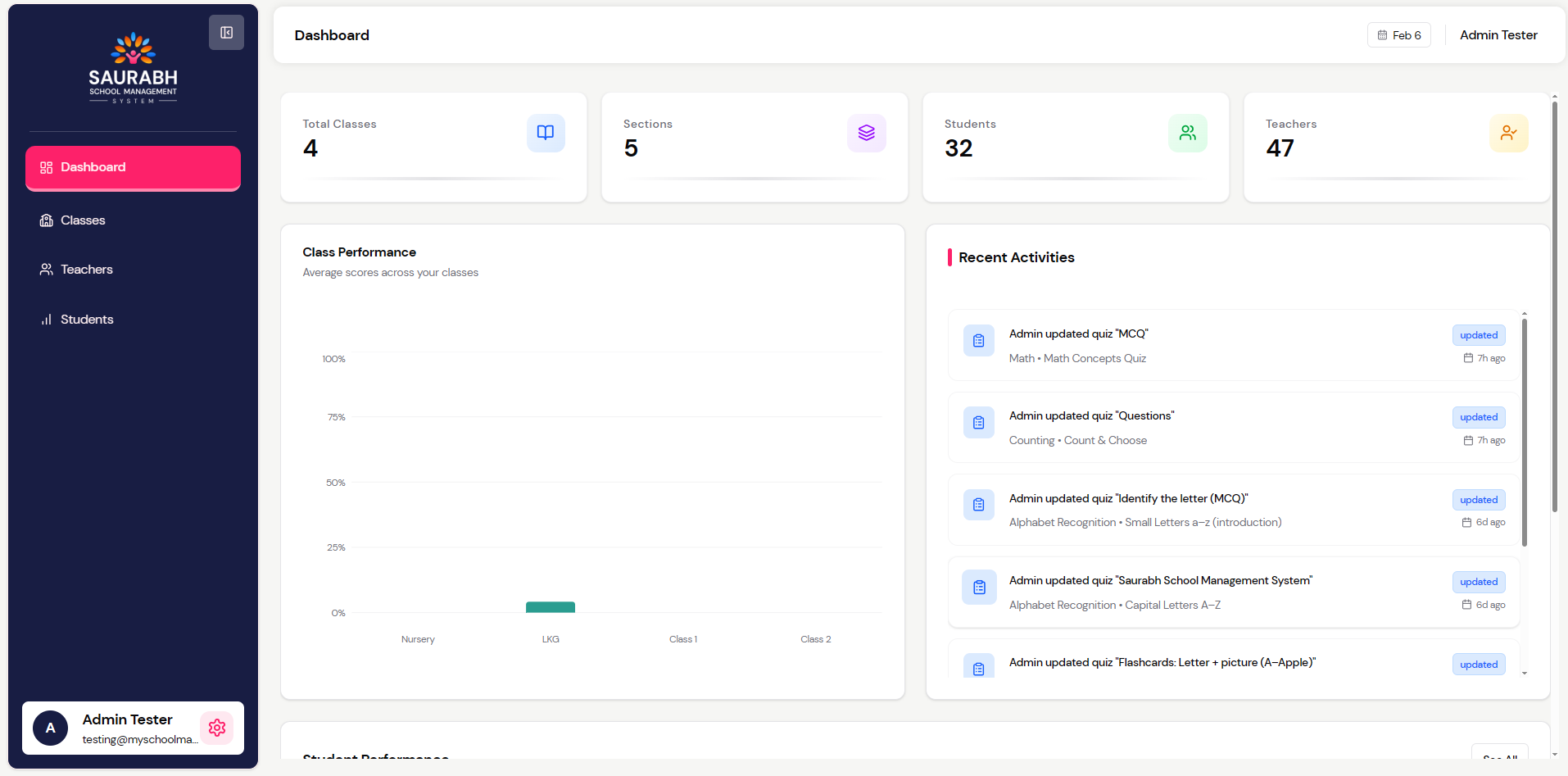
(Admin Dashboard)
2. 👨🏫 Teacher Dashboard
The Teacher Dashboard provides insights related to assigned classes and students only.
Teachers can view:
- 🏫 Total Classes & Sections (only assigned ones)
- 🎓 Total Students (associated with assigned classes)
- 📚 Units & Topics under their subjects
- 🌟 Top Performers from their classes
- 🕒 Recent Activities related to their classes
- 📈 Your Class Performance overview
⚠️ Teachers cannot view other teachers’ data.
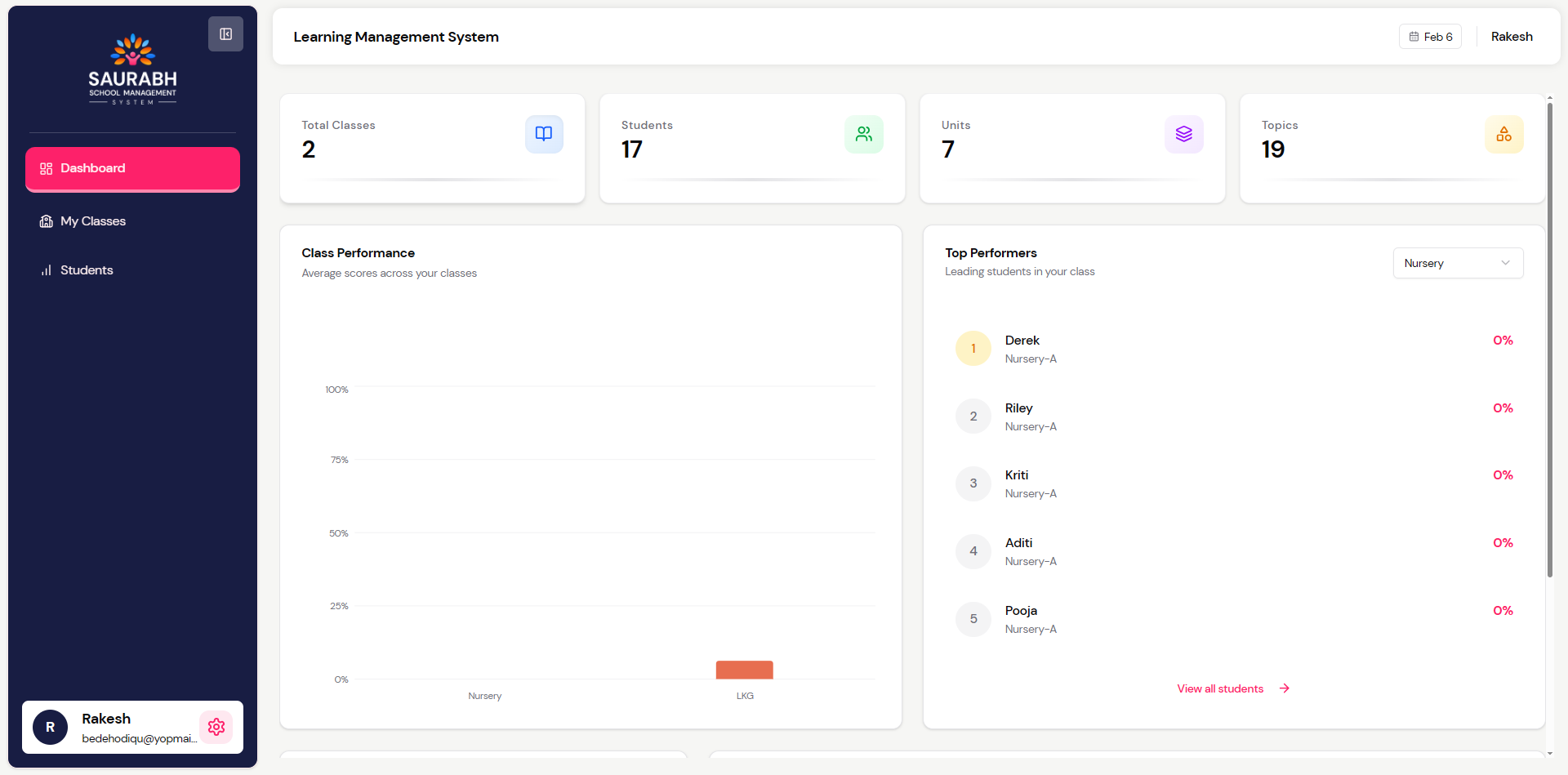
(Teacher Dashboard)
3. 🎓 Student Dashboard
The Student Dashboard helps students track learning progress and manage daily study activities.
Students can view:
- ⏱️ Time Spending – Total time spent on learning activities
- ✅ To-Do List – Add and manage personal study tasks
- 📘 Subject Progress – Progress percentage for each subject
- 📊 Subject Statistics – Performance insights based on quizzes and activities
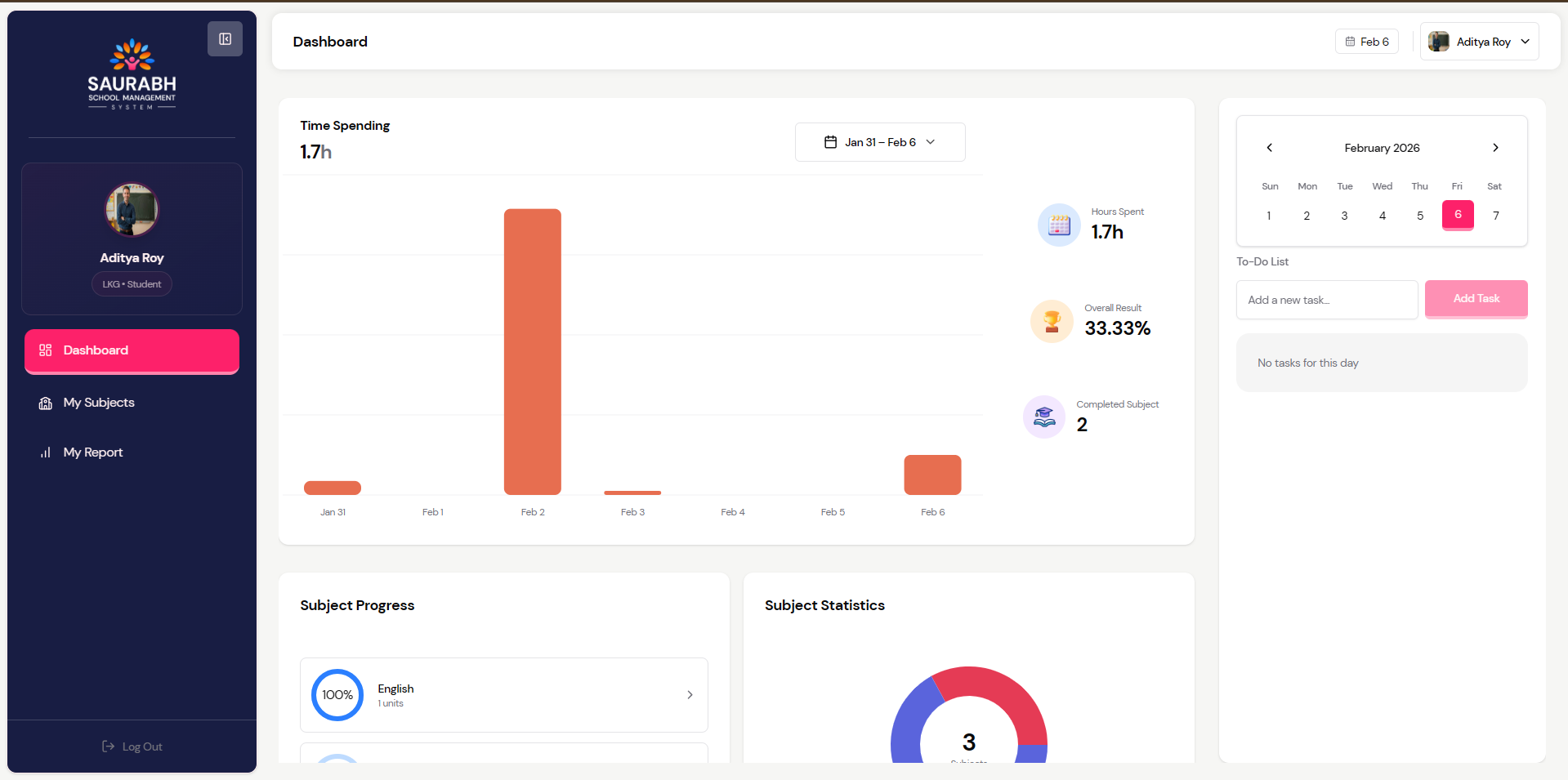
(Student Dashboard)
🧩 LMS Hierarchy
The LMS follows a step-by-step hierarchical structure:
Class ➜ Subject ➜ Unit ➜ Topic ➜ Materials ➜ Quizzes/Audios/Videos/Documents📚 Structure Explanation
- Class – Academic class (e.g., Class 8-A)
- Subject – Subject under the class (e.g., Mathematics)
- Unit – Chapter-level grouping
- Topic – Sub-topic within a unit
- Material – Learning resources
- Video
- Audio
- PDF / Document
- External Link
- Quiz – Assessment related to a topic
🔄 LMS Content Creation Flow
The LMS content creation follows a class-first navigation flow. Users must first select a class, then open a subject before creating or managing learning content.
- Admin & Teacher: Can create, edit, and manage units, topics, materials, and quizzes.
- Student: Can only view available content, study materials, and attempt quizzes to improve learning progress.
📌 Step-by-Step Flow
1️⃣ Go to the Class Section
2️⃣ Select the Class you want to manage
3️⃣ Open the Subject you want to view or manage
4️⃣ Create or manage Units under the selected subject
5️⃣ Add Topics under the unit
6️⃣ Upload Topic Materials (Video / Audio / PDF / Link)
7️⃣ Create Quizzes for the topic (Practice or Exam)
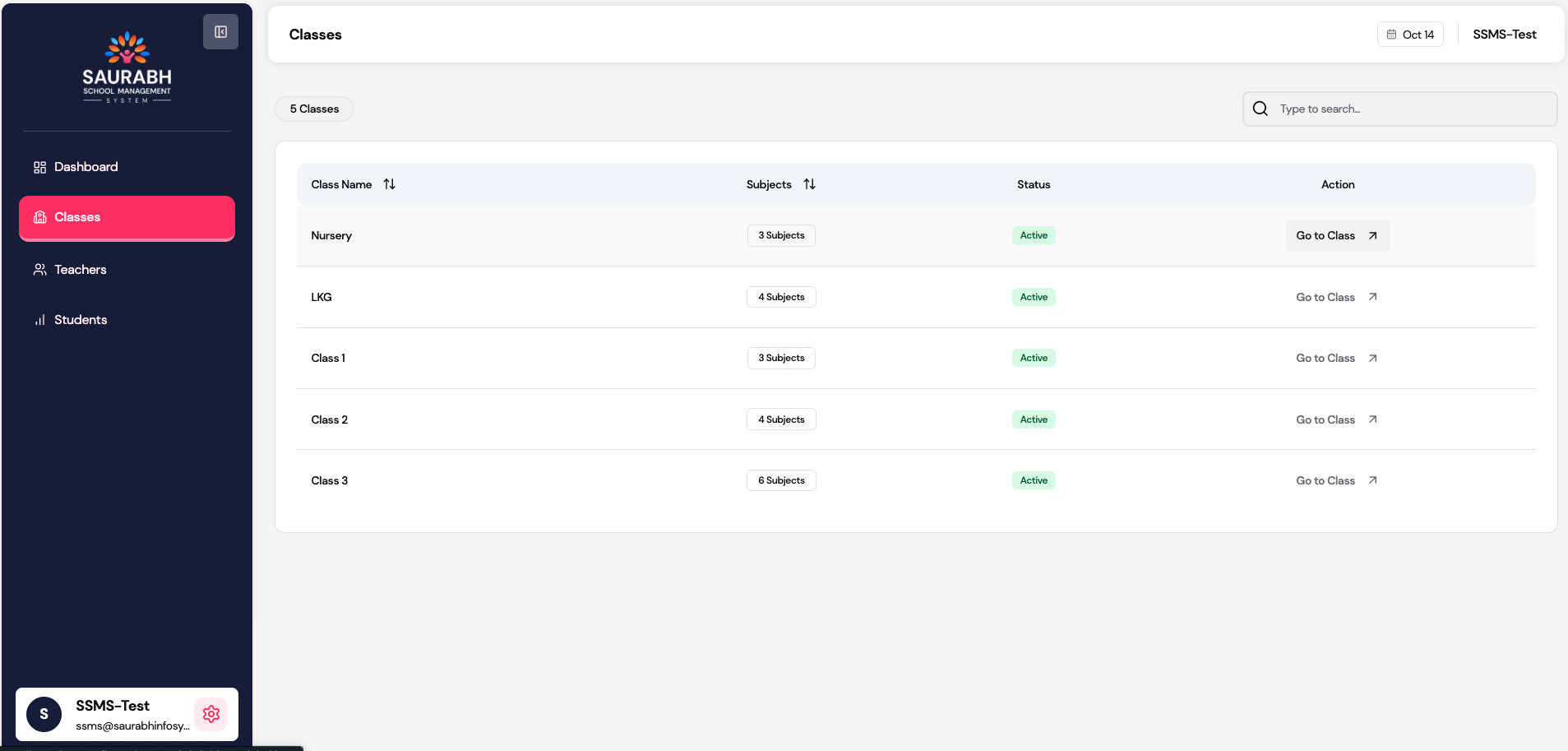
(Class list)
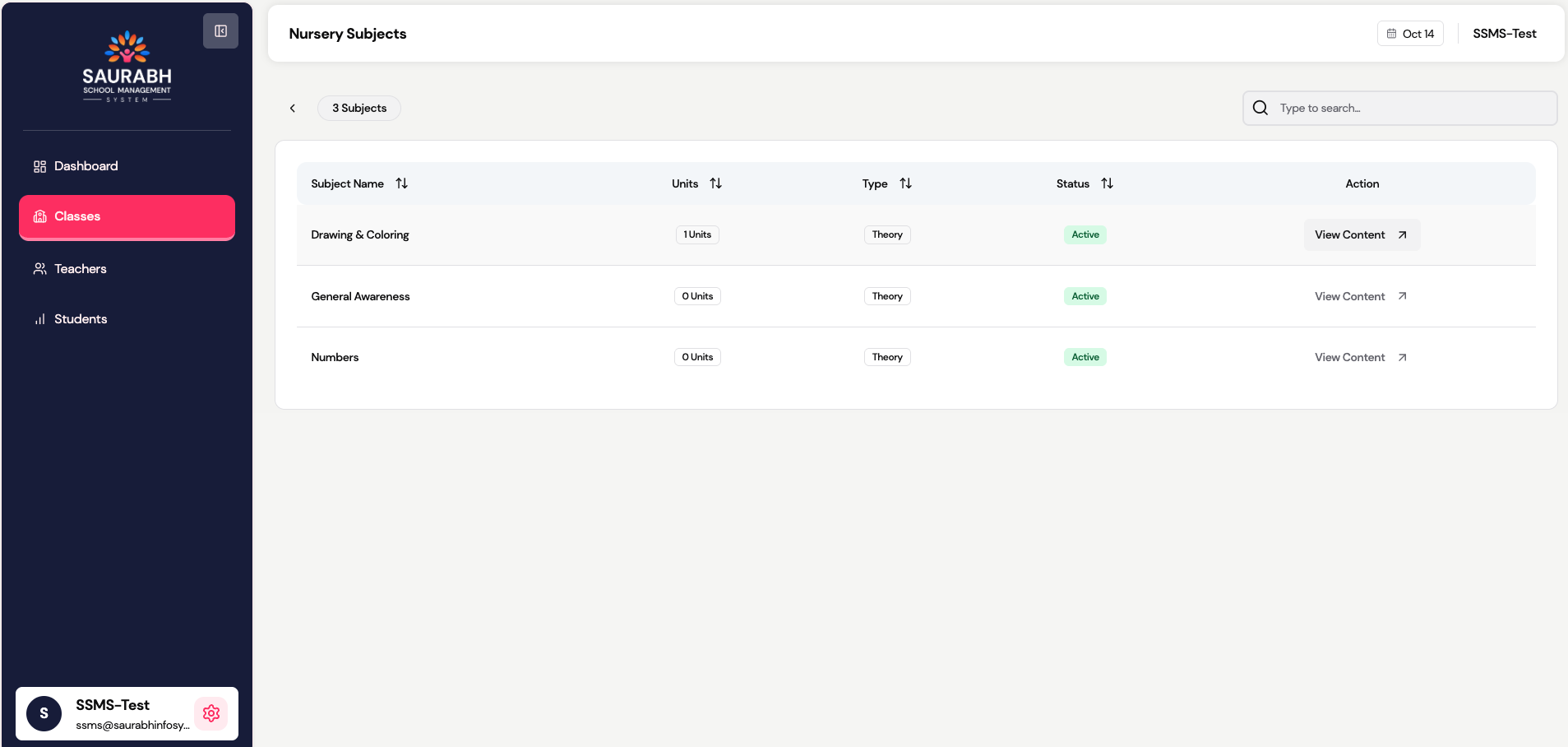
(Subject list)
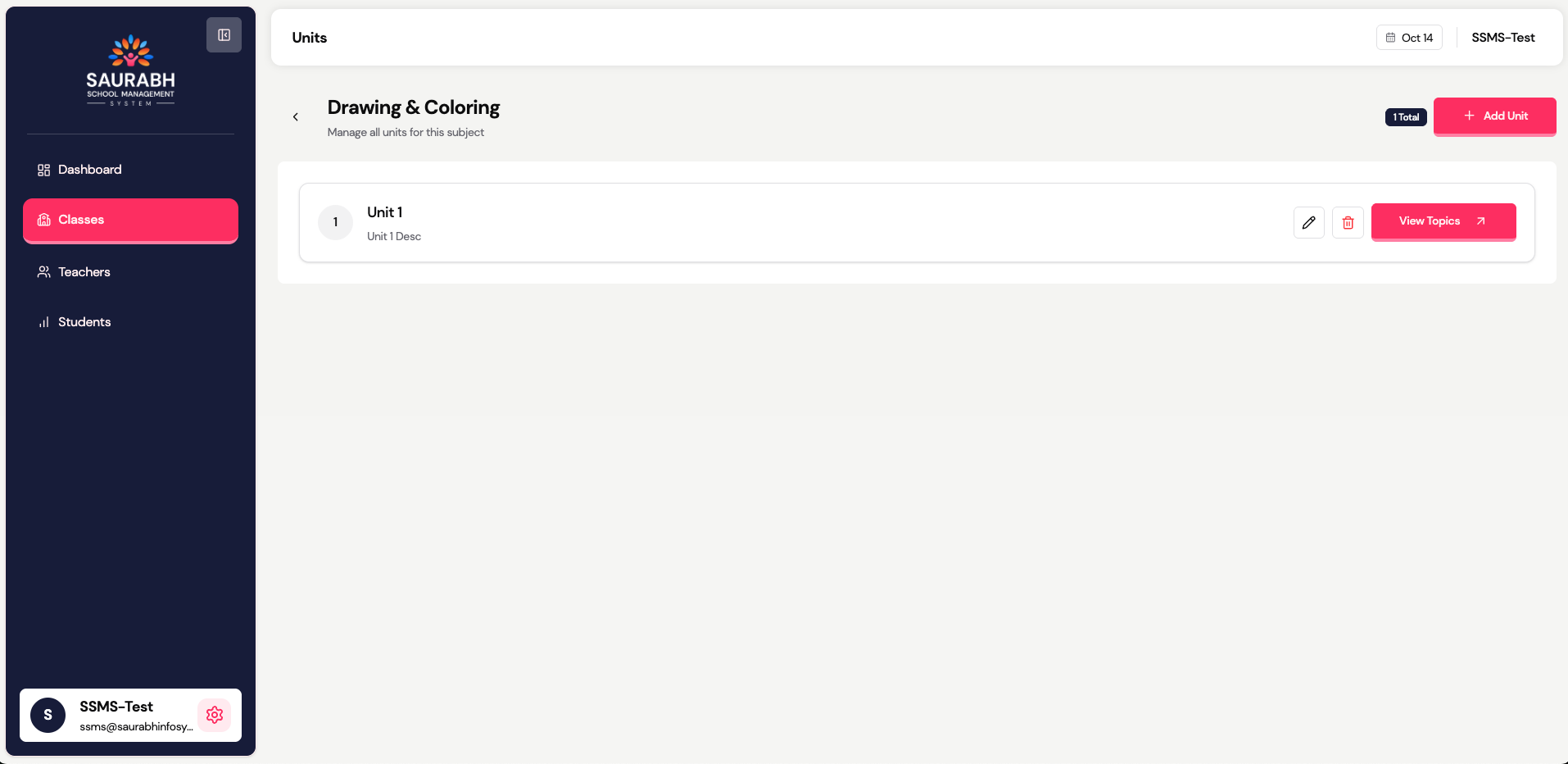
(Unit list)
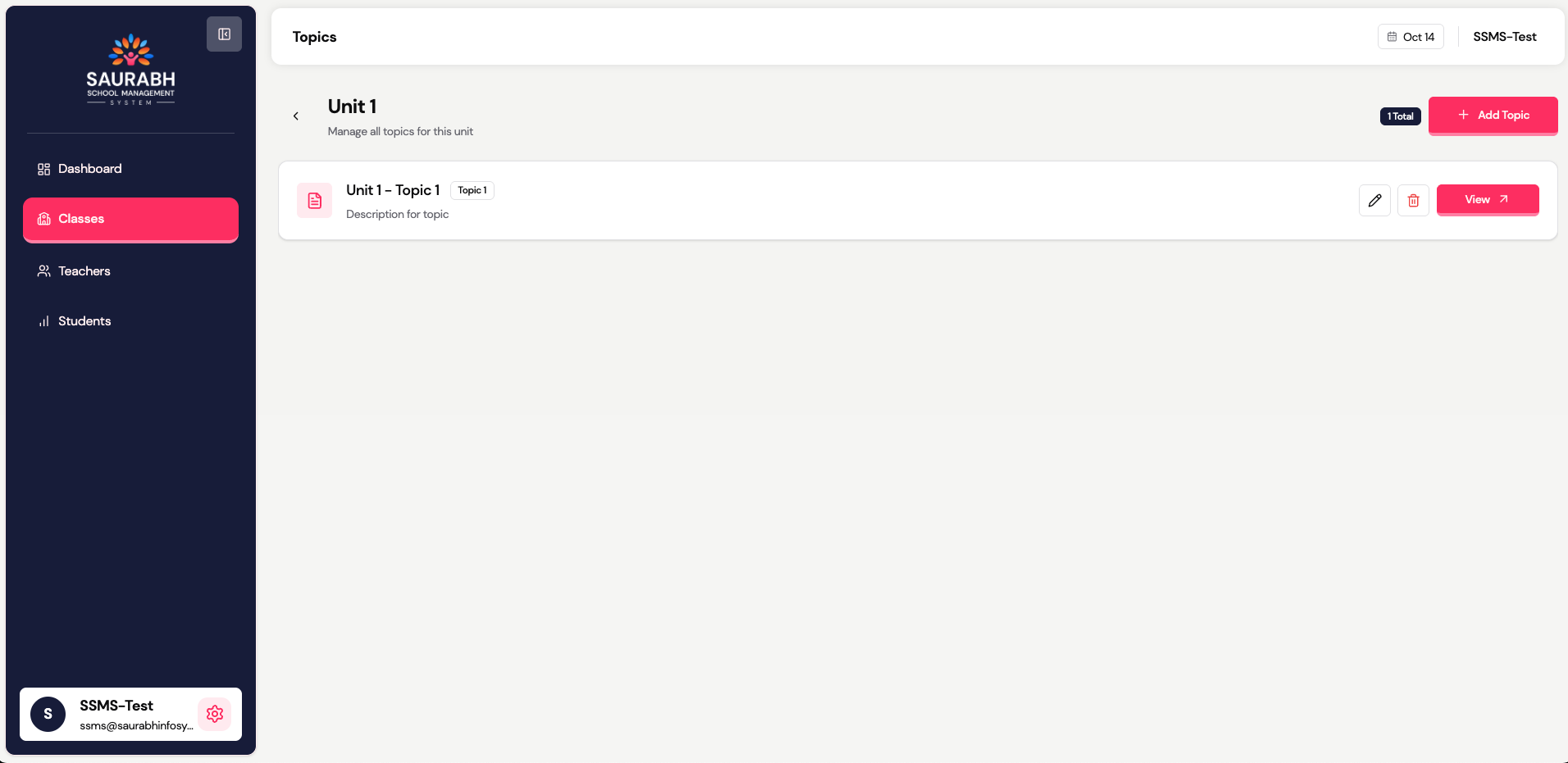
(Topic list)
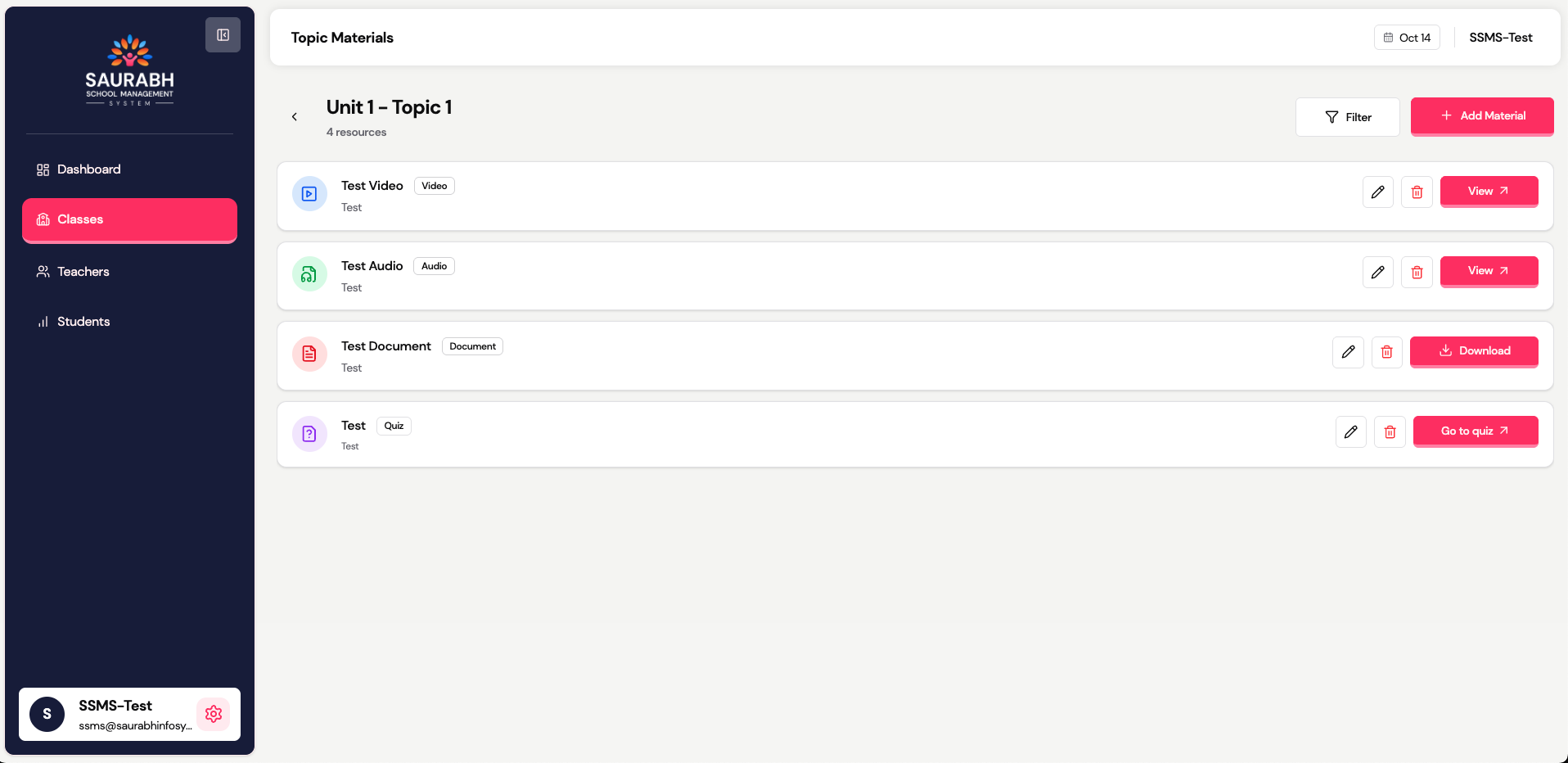
(Topic-Material list)
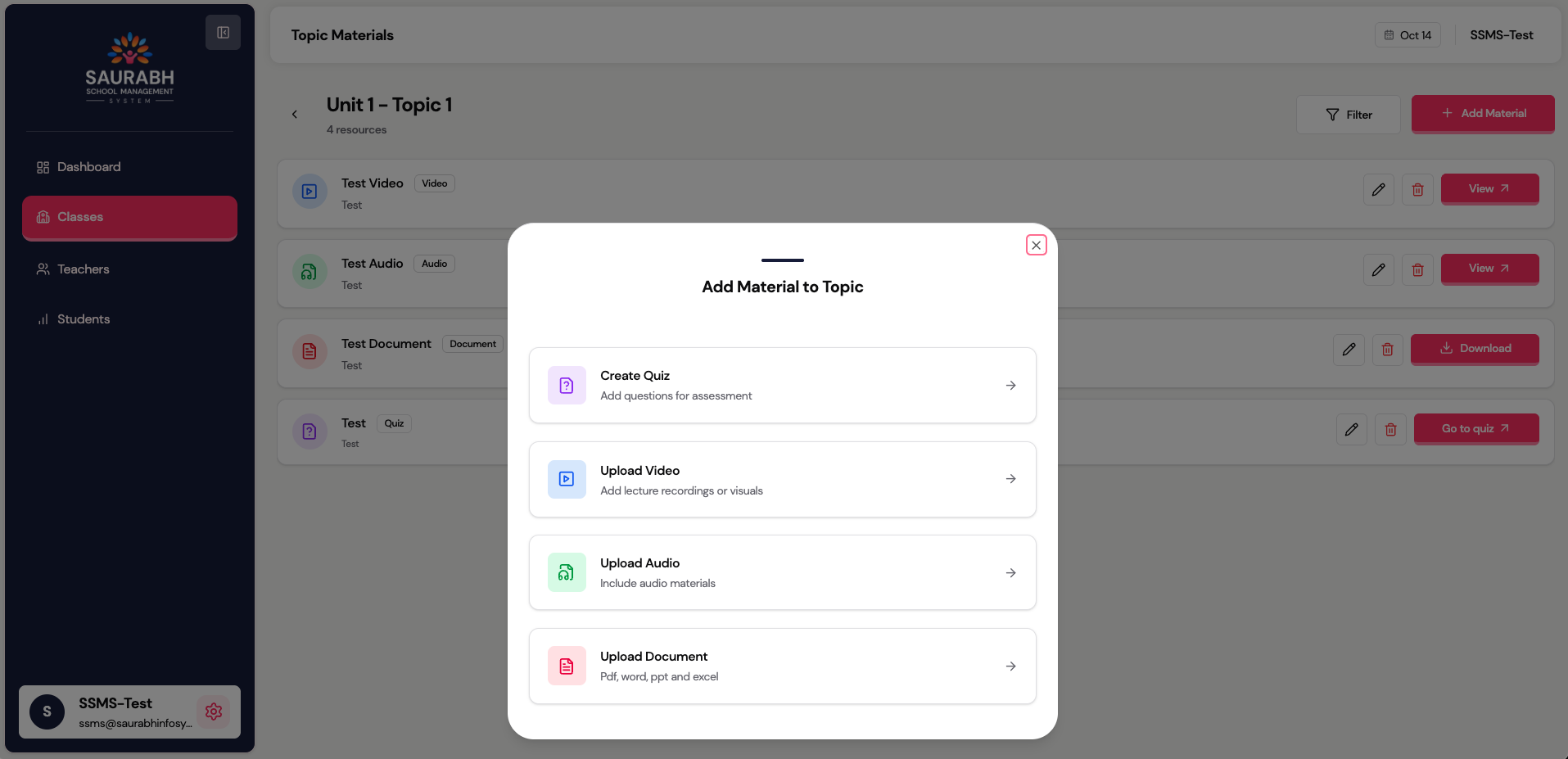
(Create Topic-Material)
🧪 Quiz Types & Evaluation
Each topic supports two types of quizzes:
📝 Practice Quiz 🧾 Exam Quiz
- Students can view: Students cannot see answers immediately
- Correct answers Results are shown only after exam completion
- Wrong answers Full report includes:
- Explanation (if added) → Total score
- Designed for learning and improvement → Correct / incorrect answers
- Can be attempted multiple times → Performance summary
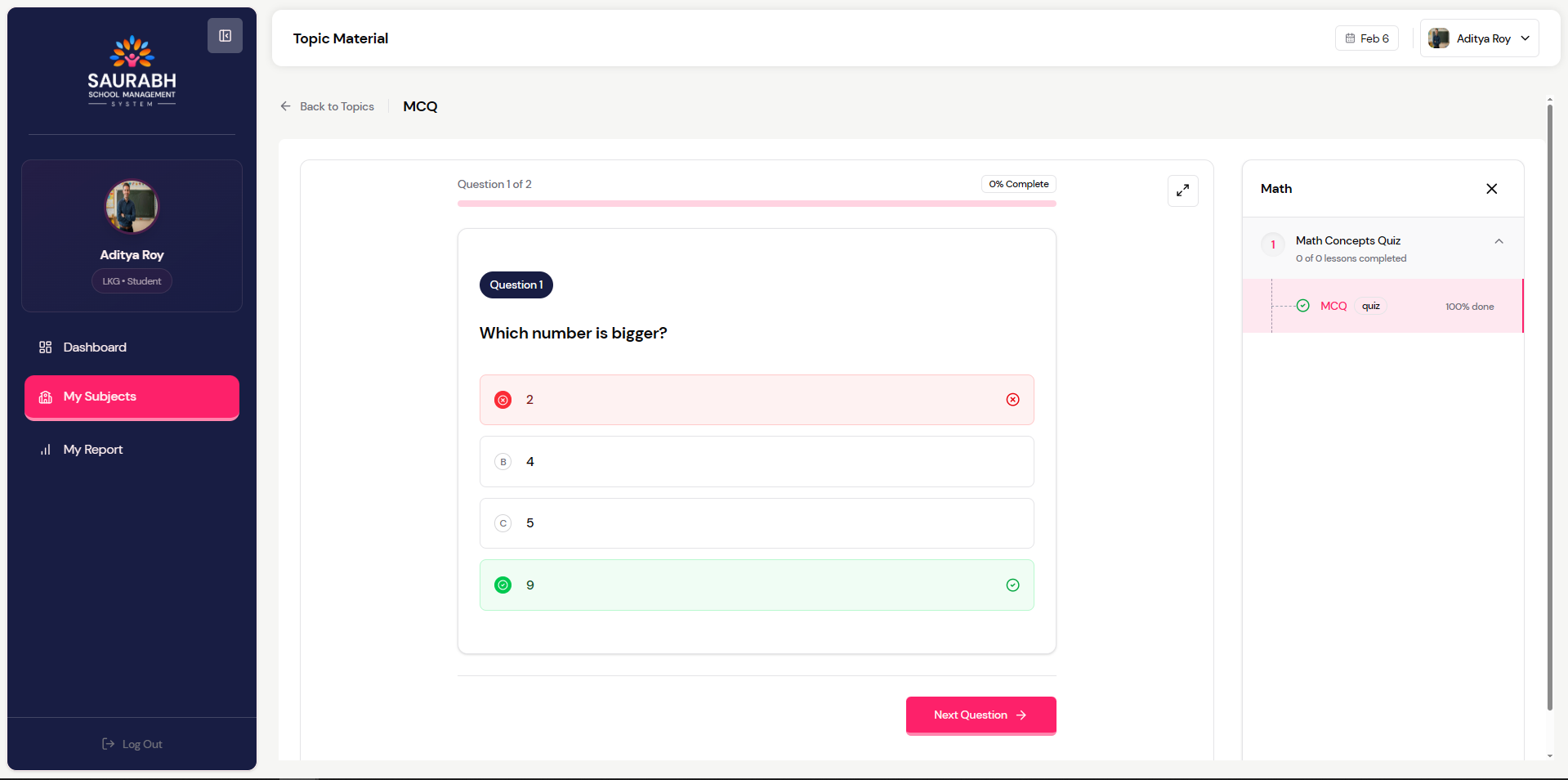
(Practice Quiz)
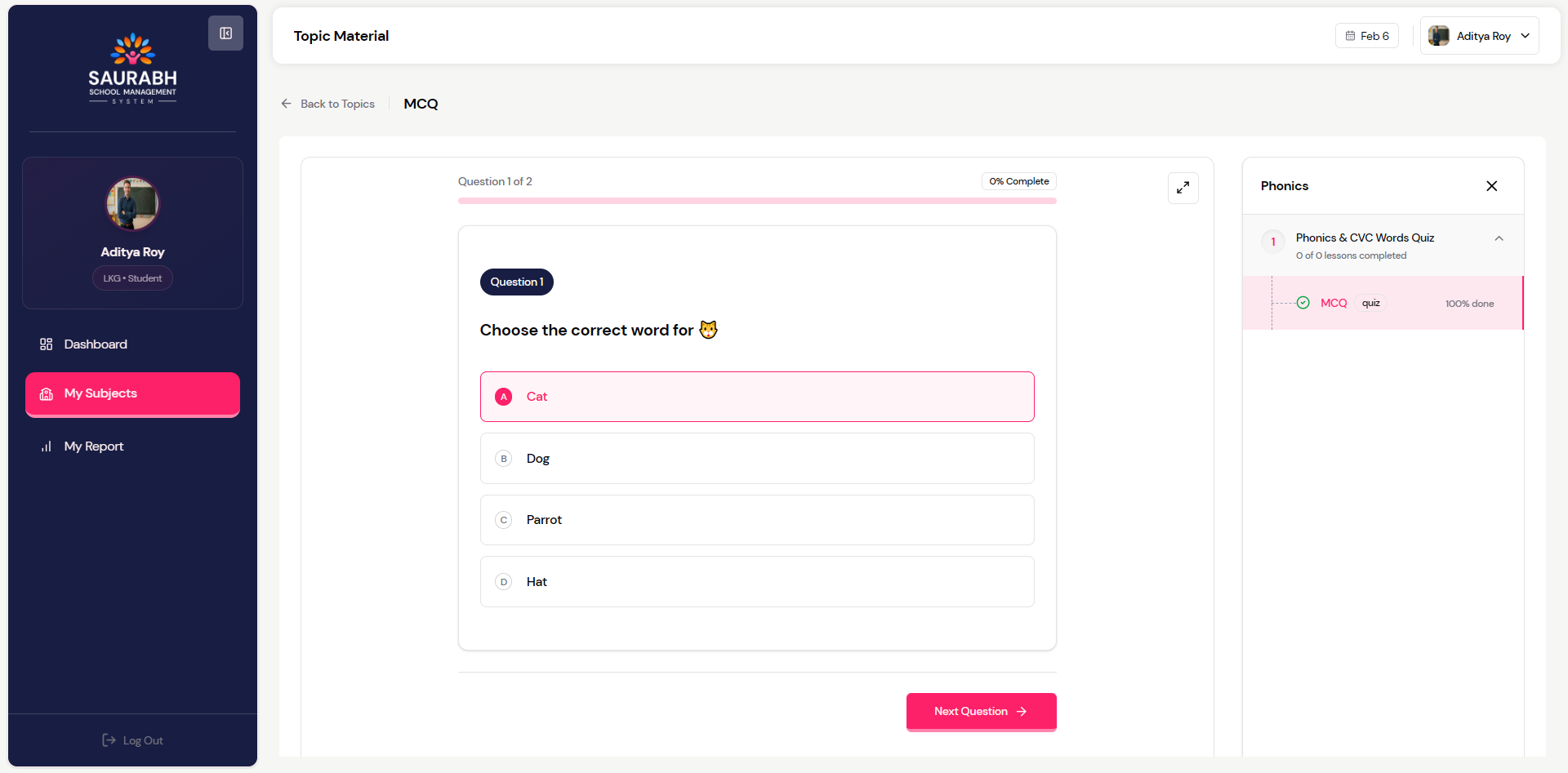
(Exam Quiz)
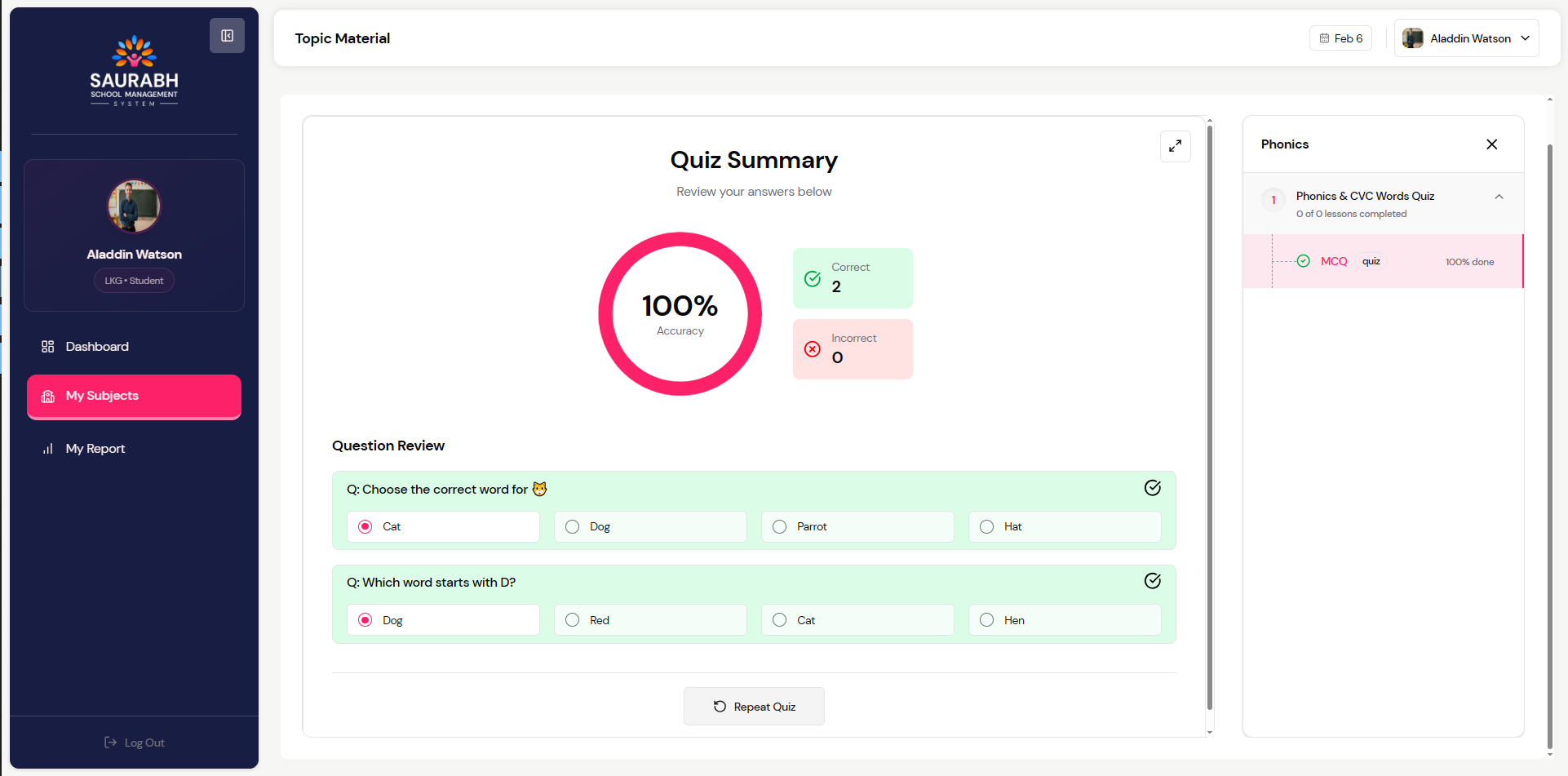
(Exam Report after quiz given)
📊 Reports & Analytics
📈 Student-section :- Class-Level Reports (Admin & Teacher)
Admin and teachers can select a class and section to view the student list, manage LMS access (enable/disable) for each student, and access reports showing total subjects, average progress, weekly learning hours, and overall results for individual students and click on any subject to view both summary and detailed summaries, including number of attempts, correct answers, wrong answers, accuracy, and performance insights.
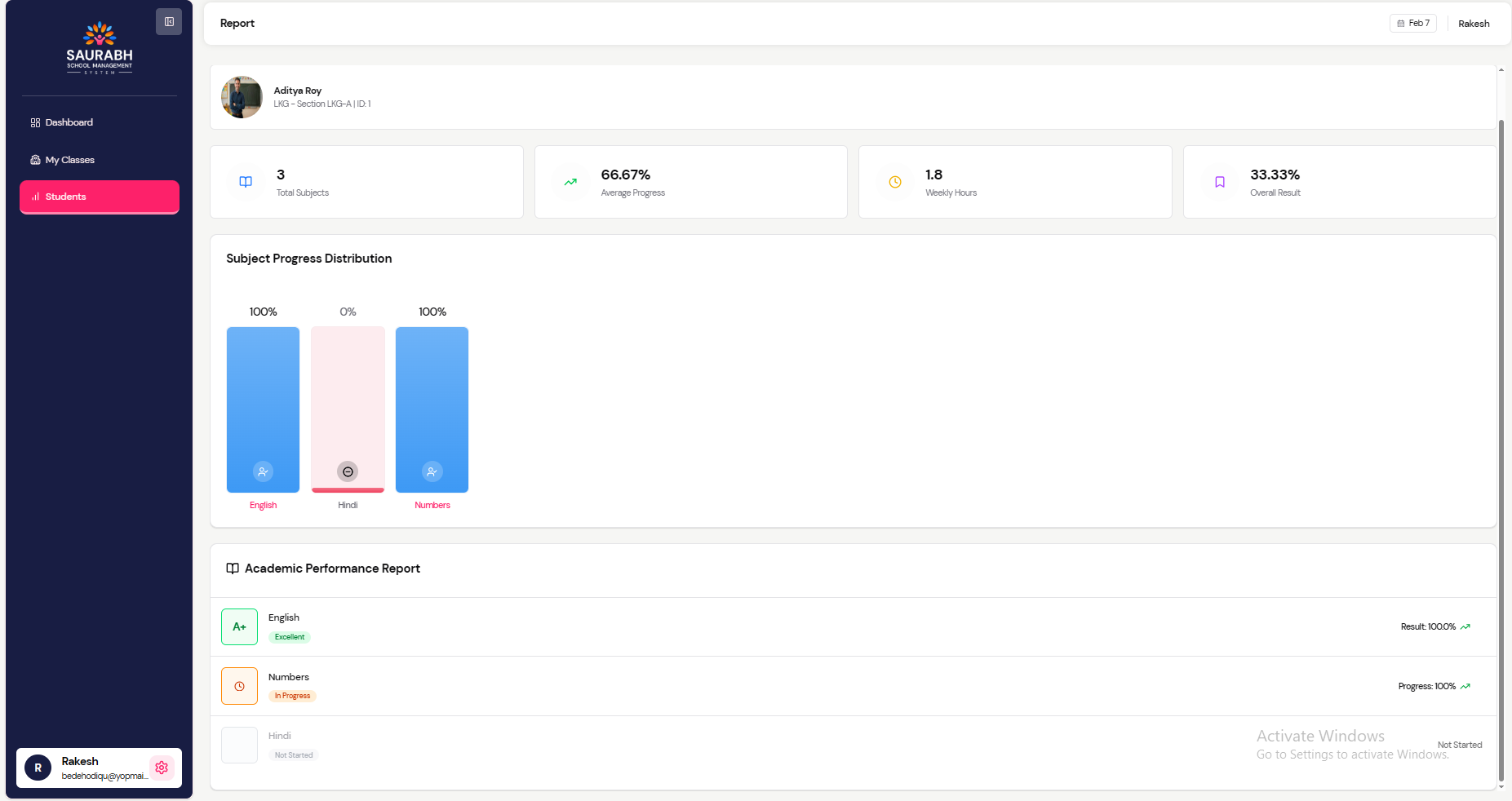
(Student All subject Result and Progress)
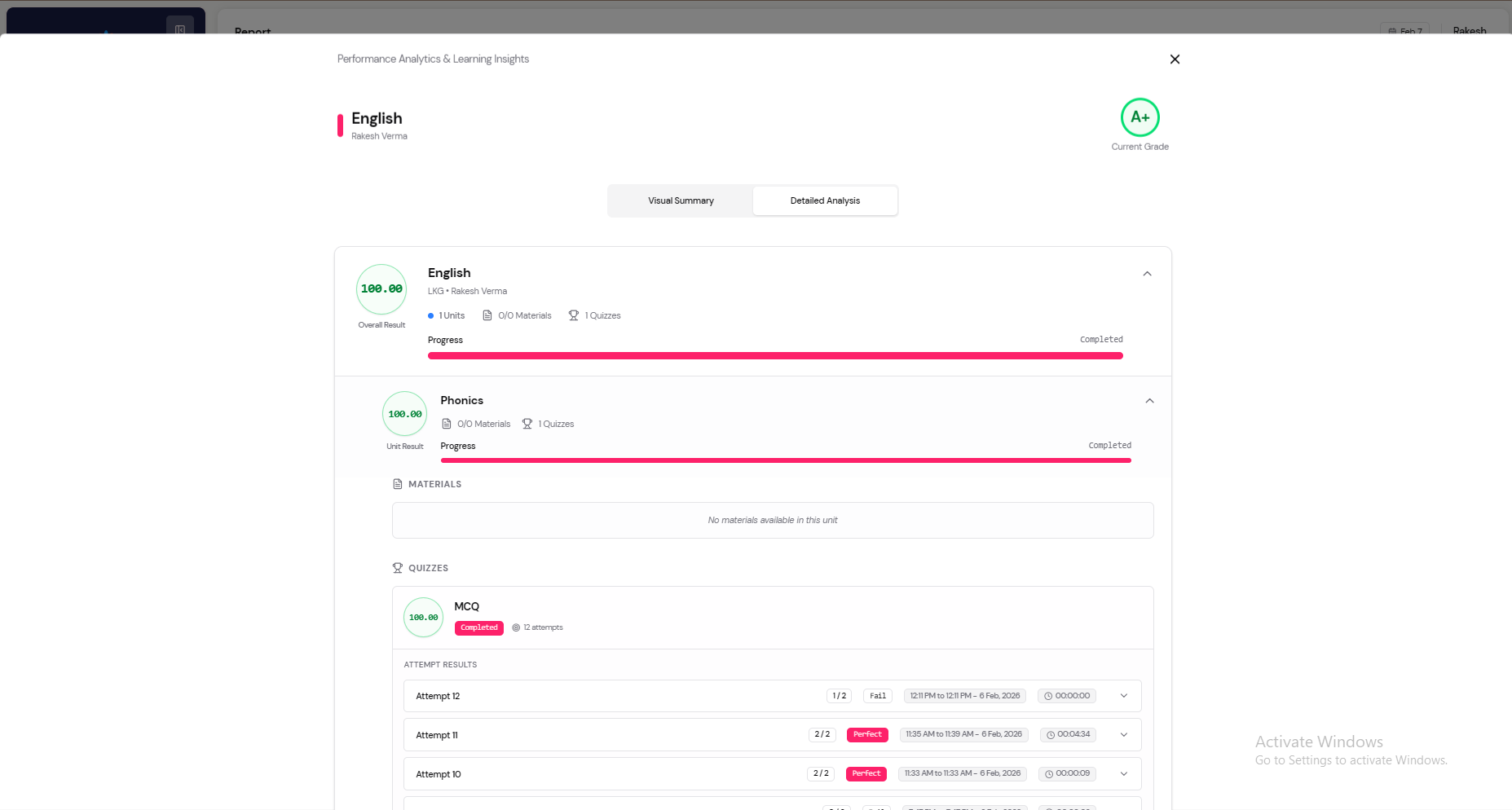
(Student Detailed Analysis)
📉 Student-Level:- My Reports
From the student report view, Admin and teachers can analyze subject-wise progress distribution, review academic performance reports, and click on any subject to view both summary and detailed summaries, including number of attempts, correct answers, wrong answers, accuracy, and performance insights.
In the 📈 Student-section :- Class-Level Reports (Admin & Teacher), visual charts and images are displayed in the upper section to help students quickly understand their overall performance.
🛠️ Quick Troubleshooting
| Issue | Possible Fix |
|---|---|
| Teacher can’t access LMS | Enable LMS Access in Admin panel for the teacher |
| Student can’t see Subject | Verify class & subject mapping |
| Video not playing | Upload MP4 or YouTube link |
| Quiz missing | Ensure topic is visible and quiz saved |