SMS Language Learning App User Guide
Login & Onboarding Process
This guide explains how students can log in to the app and complete the initial onboarding process to generate a personalized learning course.
1. Login Process
How Login Works
Students do not create their own accounts.
- Login credentials are shared by the school on
- Details are sent to the registered parent's email address
- Parents should share these credentials with their child
Steps to Login
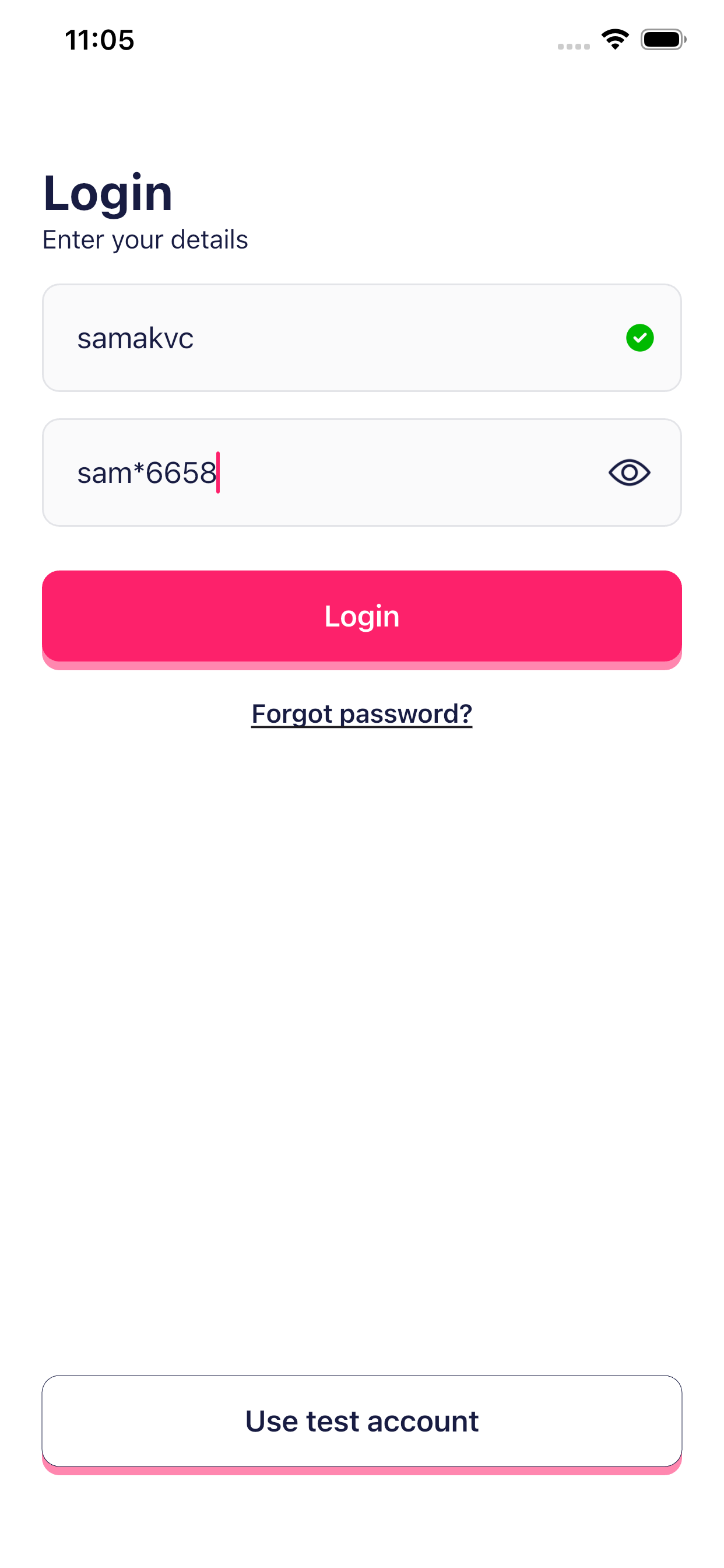
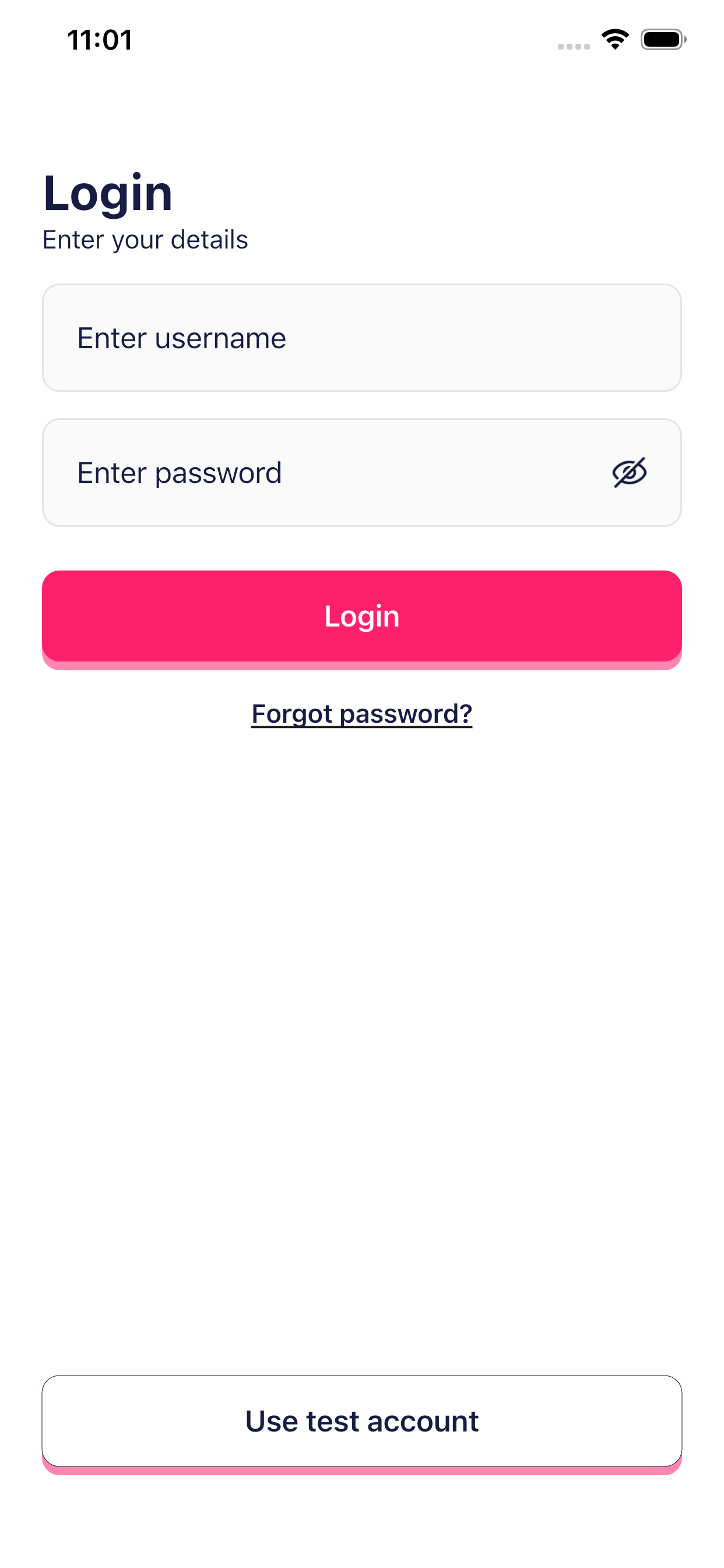
- Open the app
- On the Login screen, enter:
- Username:
The email address registered with the school
- Password:
Provided by the school via email
- Username:
- Tap on Login
If the details are correct, the student will be logged in successfully.
Forgot Password?
If the password is forgotten:
- Use the Forgot Password option, or
- Contact the school for assistance
2. Onboarding Process (First-Time Setup)
After logging in for the first time, the app will guide the student through a few simple steps.
This helps the app understand the student better and create a personalized learning plan.
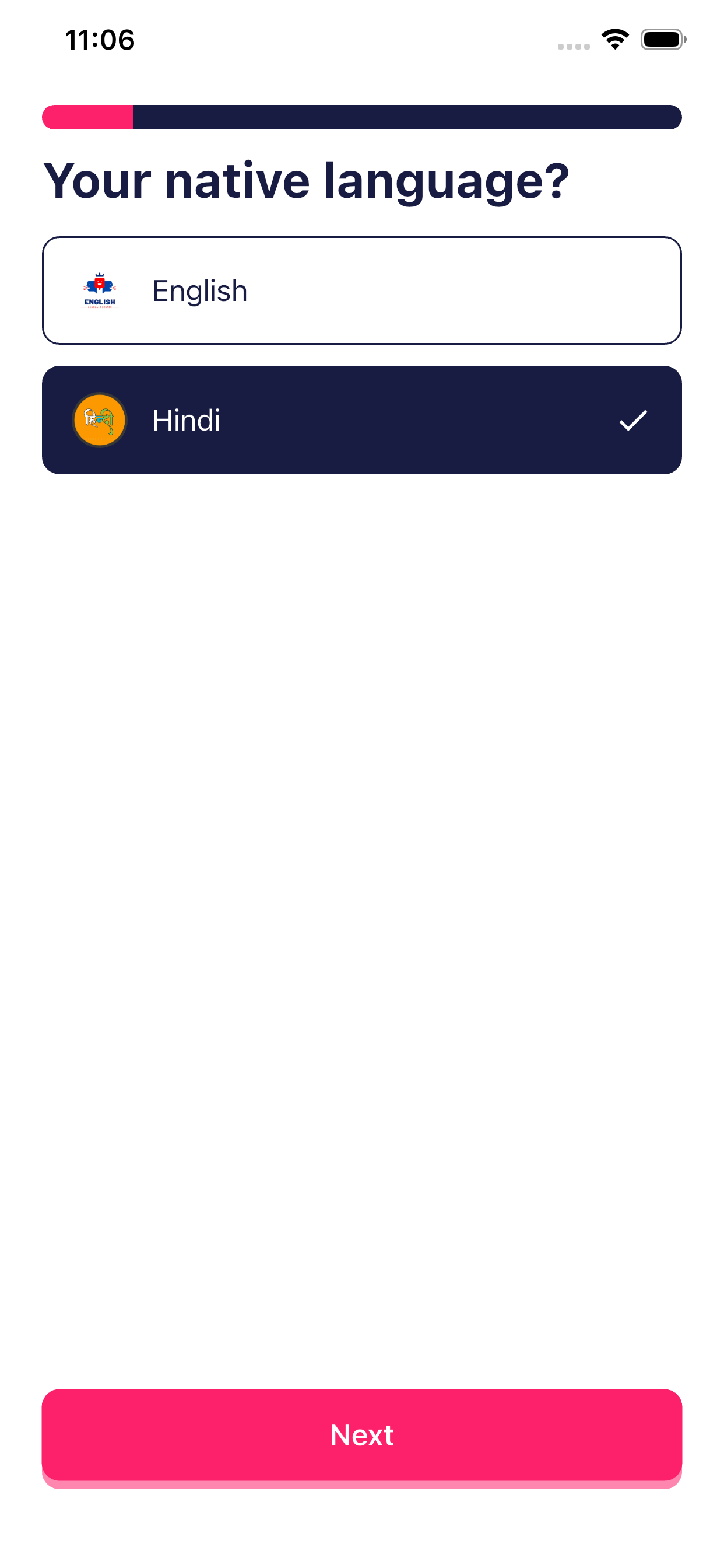
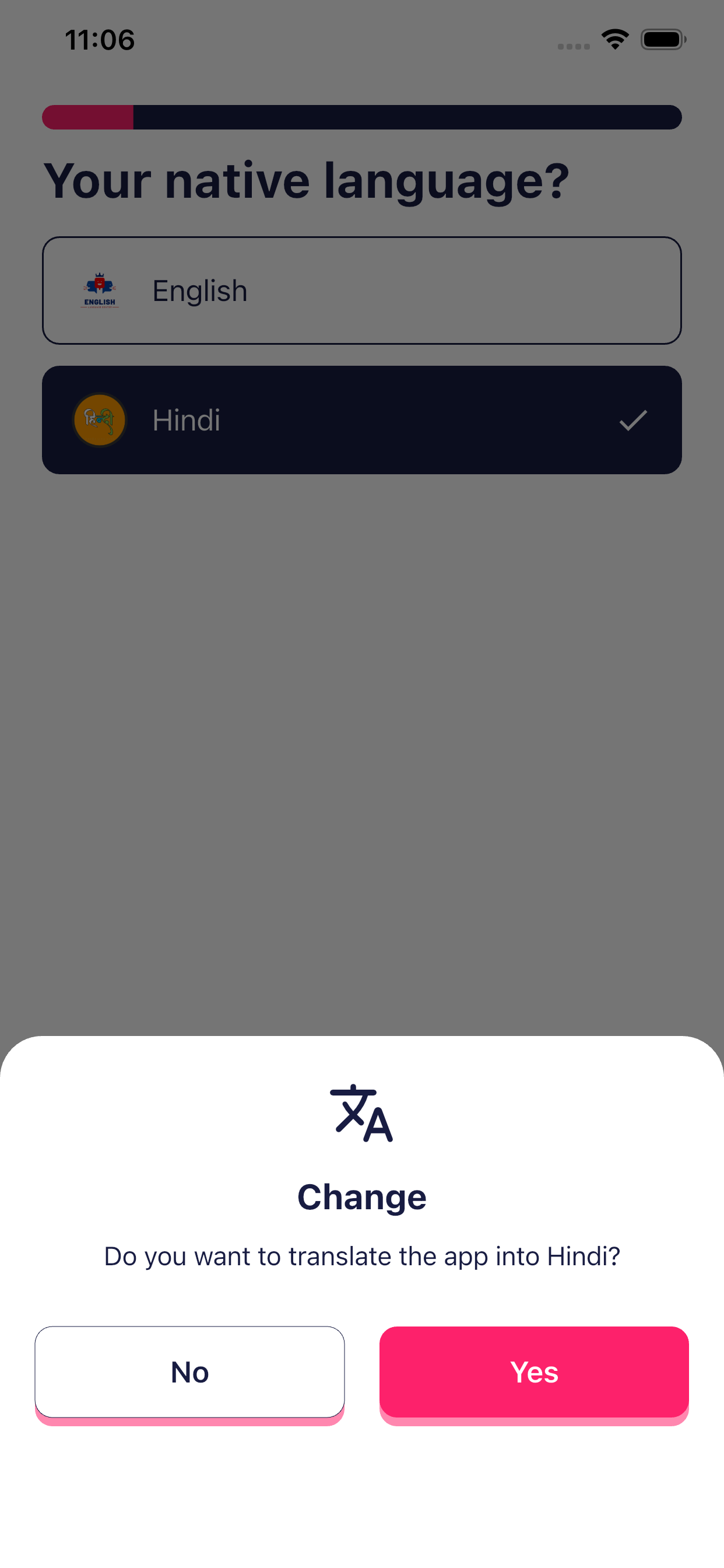
Step 1: Select Native Language
- The student selects their native (mother tongue)
- This helps the app explain concepts more clearly
Example:
- English
- Hindi
Tap Next to continue.
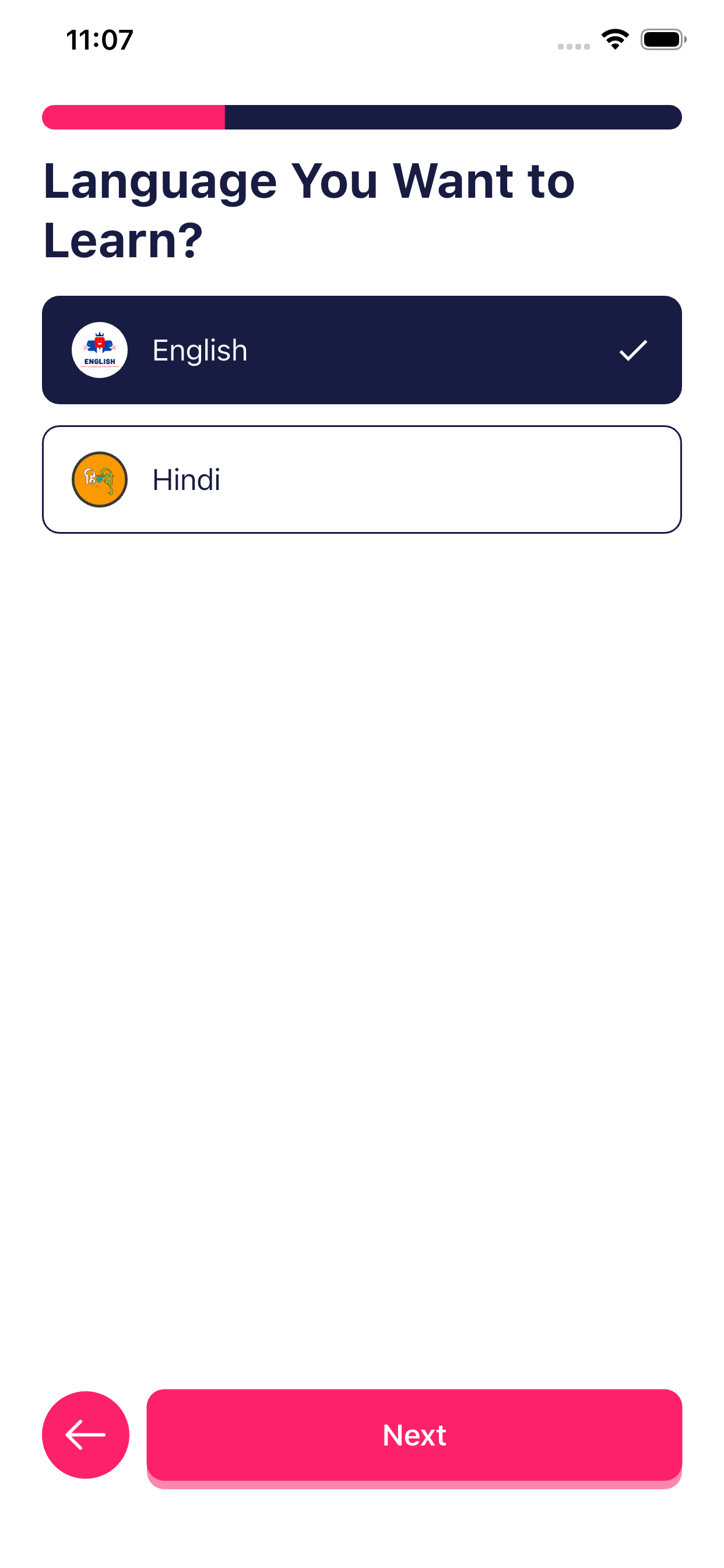
Step 2: Select Language to Learn
- Choose the language the student wants to learn
(e.g., English or Hindi)
Tap Next.
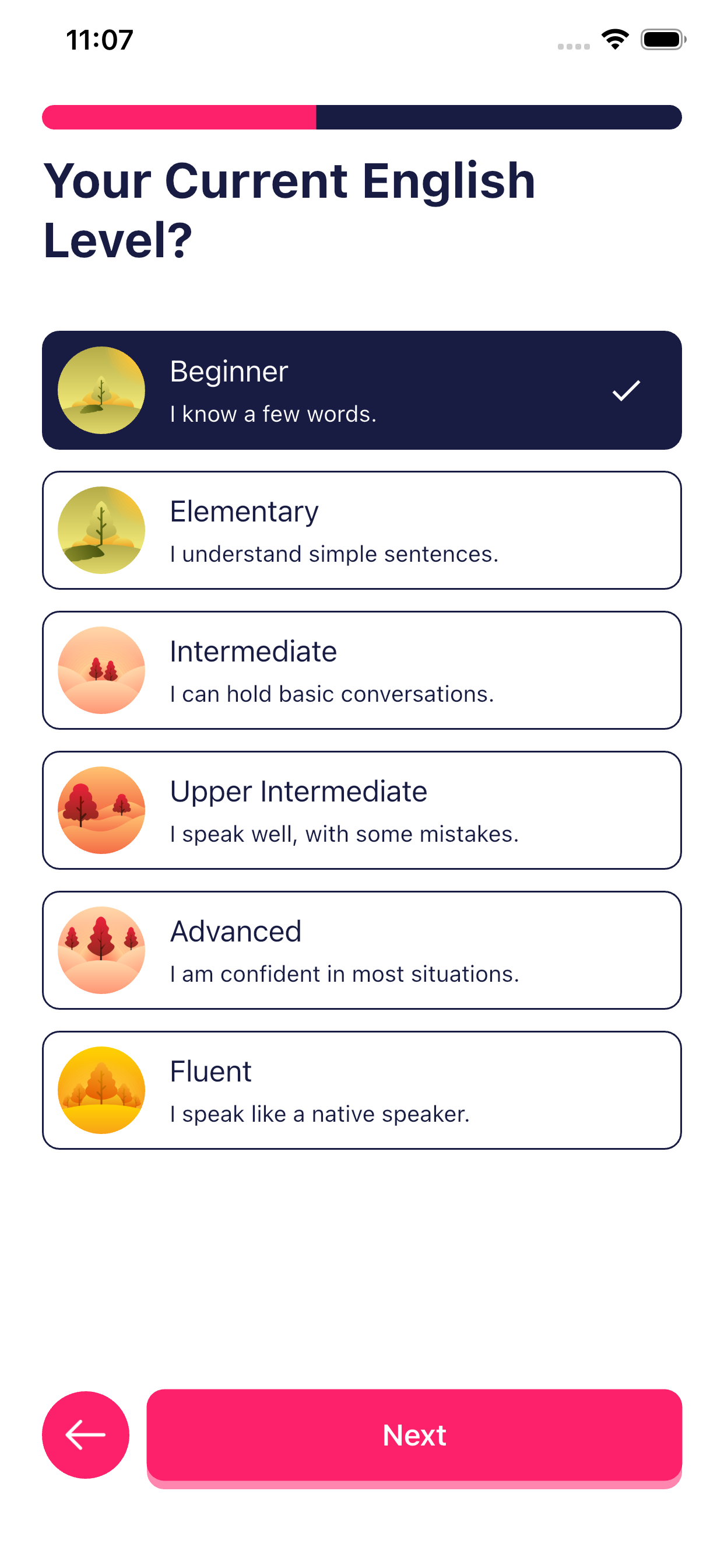
Step 3: Select Current Language Level
The student selects their current proficiency level:
- Beginner – Knows a few words
- Elementary – Understands simple sentences
- Intermediate – Can hold basic conversations
- Upper Intermediate – Speaks well with minor mistakes
- Advanced – Confident in most situations
- Fluent – Speaks like a native speaker
Tap Next after selecting the level.
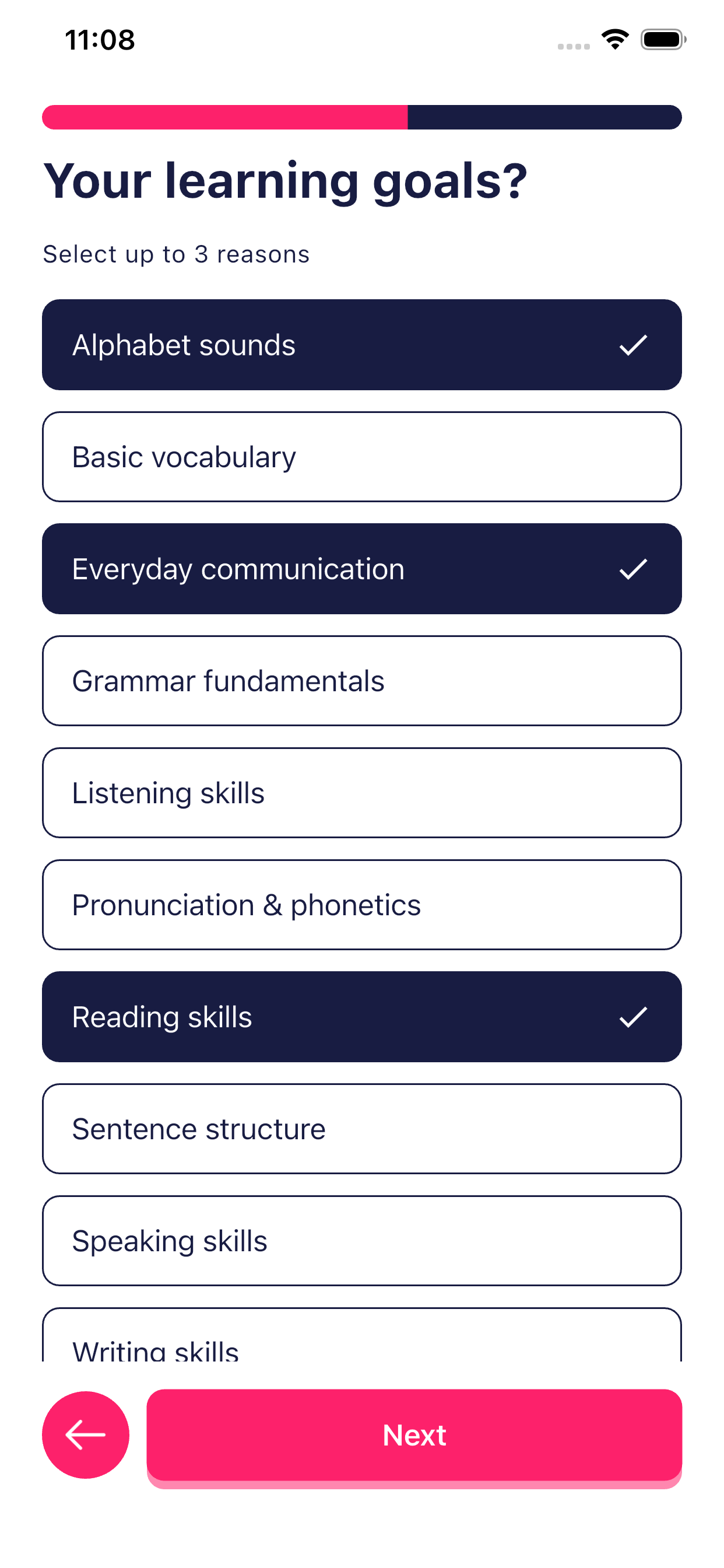
Step 4: Select Learning Goals
The student selects what they want to improve, such as:
- Alphabet sounds
- Basic vocabulary
- Everyday communication
- Grammar fundamentals
- Pronunciation
- Speaking or writing skills
Multiple goals can be selected.
Tap Next.
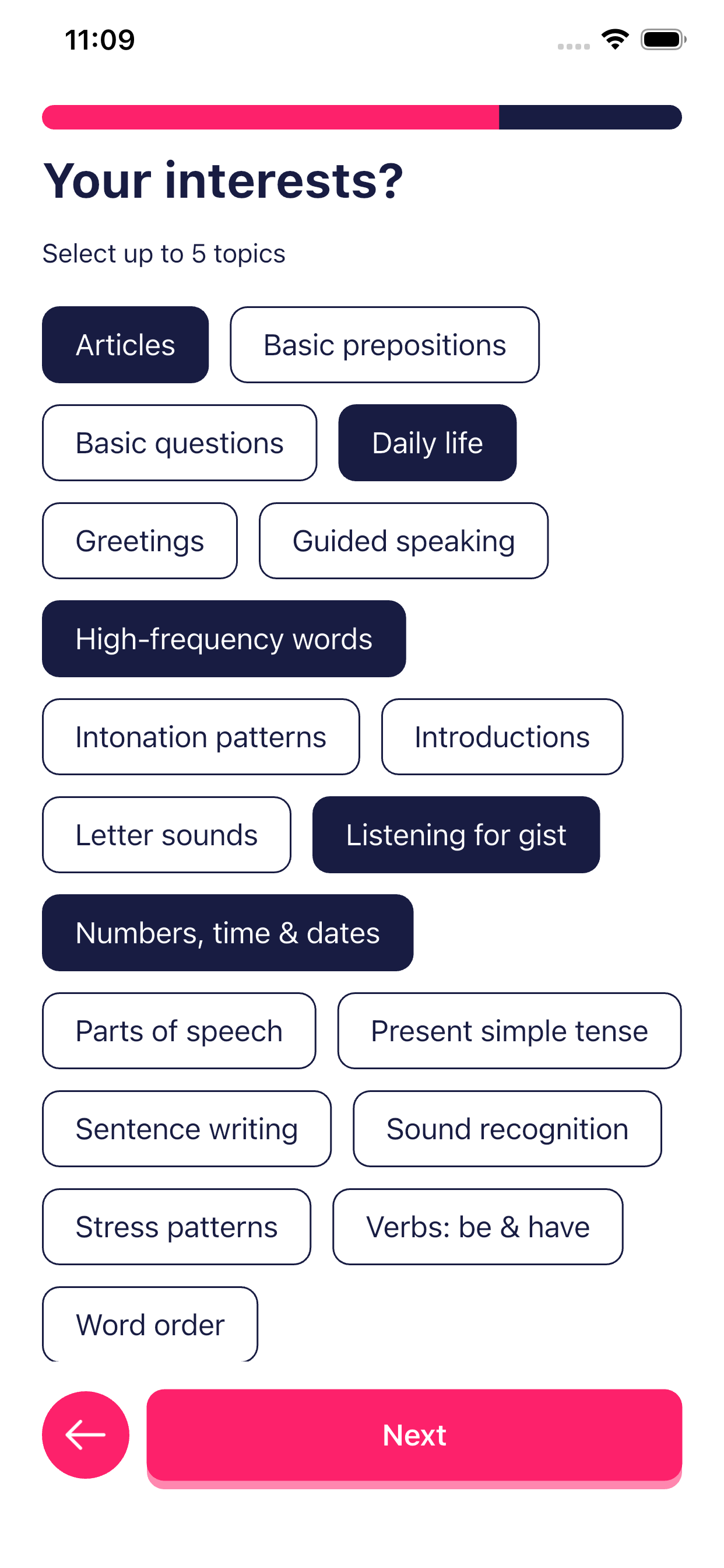
Step 5: Select Learning Interests
This helps the app create lessons around topics the student enjoys.
Examples:
- Daily life
- Greetings
- Basic questions
- Guided speaking
- Numbers, time & dates
- Sentence writing
The student can select up to 5 interests.
Tap Next.
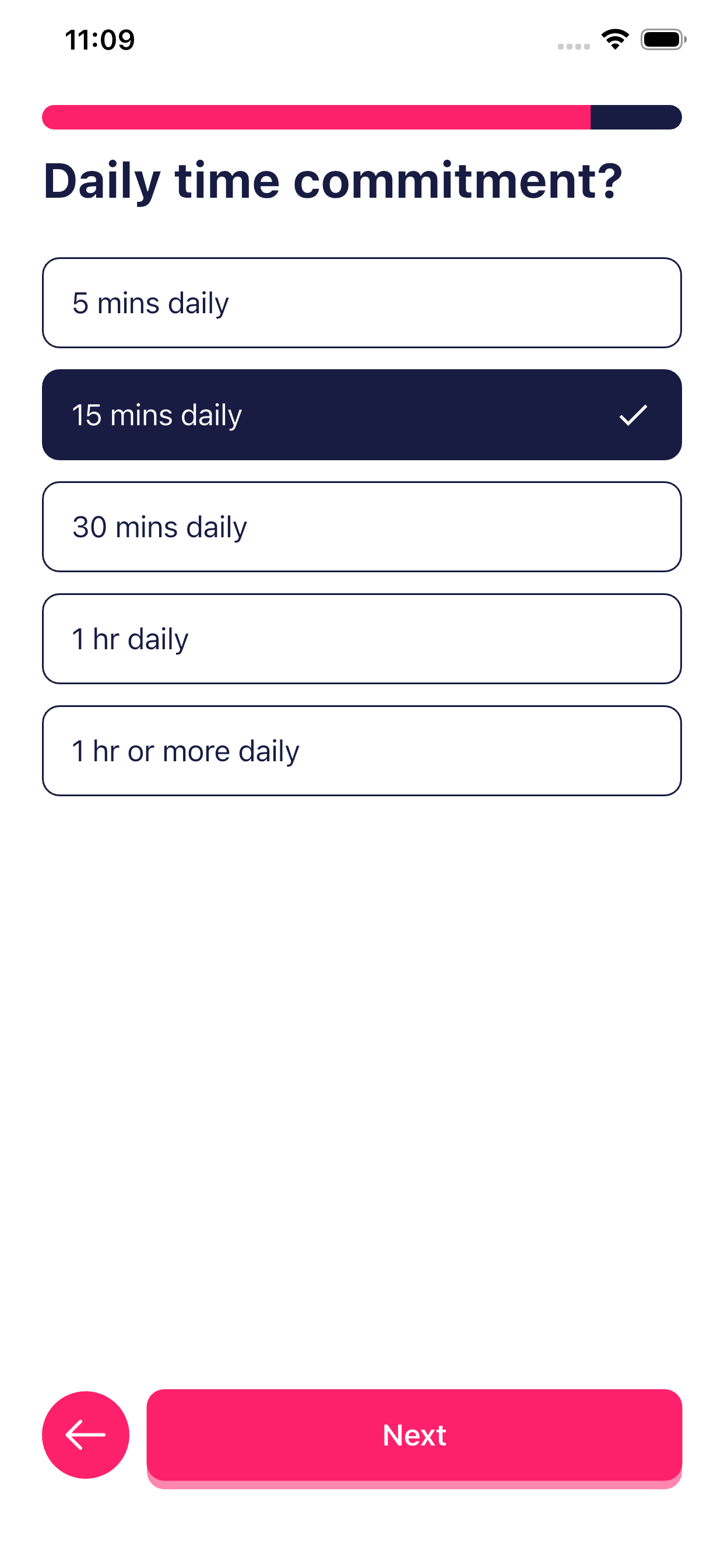
Step 6: Select Daily Study Time
Choose how much time the student can study daily:
- 5 minutes
- 15 minutes
- 30 minutes
- 1 hour
- 1 hour or more
Tap Next.
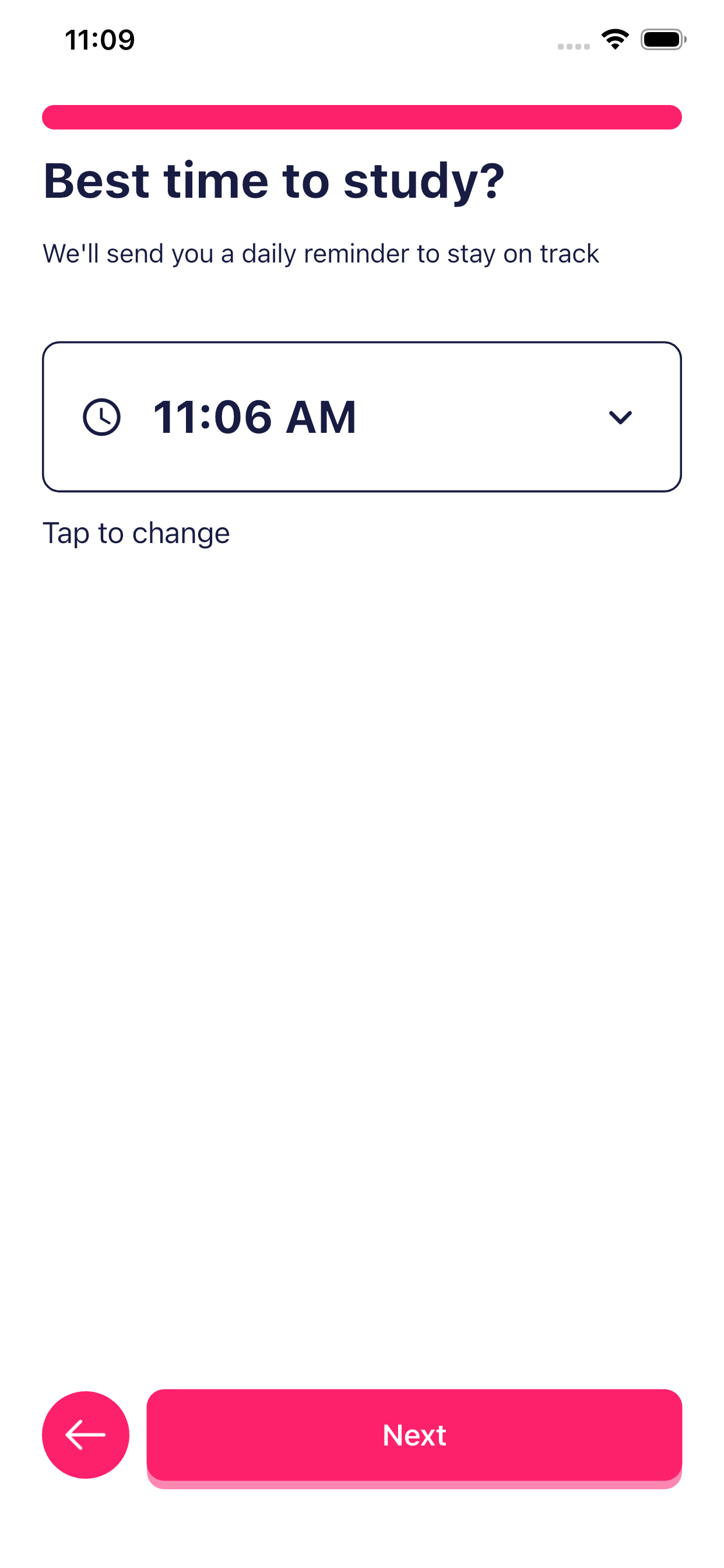
Step 7: Select Best Study Time
- Choose the preferred time of day for studying
- The app will send daily reminders at this time
Tap Next.
3. Personalized Course Creation
Once all details are submitted:
- The app analyzes the student’s:
- Language choice
- Level
- Goals
- Interests
- Daily availability
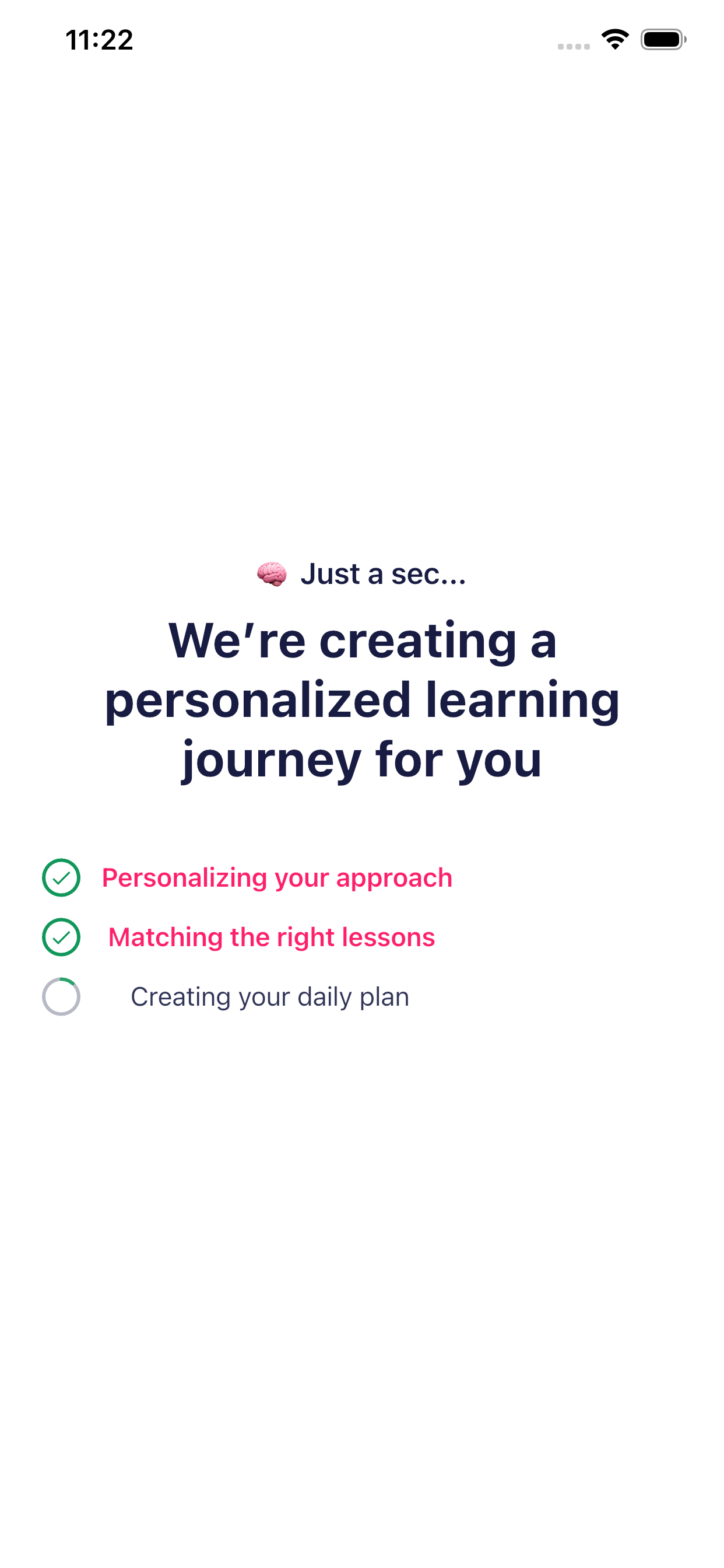
- A personalized learning journey is created automatically
A progress screen will appear showing the course setup in progress.
4. Accessing the Learning Course
After setup:
- The student can view their personalized course
- Daily lessons and practice activities are available
- Learning progresses step-by-step based on the student’s level
✅ Key Points for Parents
- Login details are provided by the school
- Onboarding is completed only once
- All questions help customize the child’s learning
- The course is automatically generated
- The app adapts as the student progresses
🔑 Forgot Password Process
This section explains how students can reset their password if they forget it.
1. When to Use “Forgot Password”
Use the Forgot Password option when:
- The student forgets the login password
- Login is not possible due to an incorrect password
2. Step-by-Step Forgot Password Process
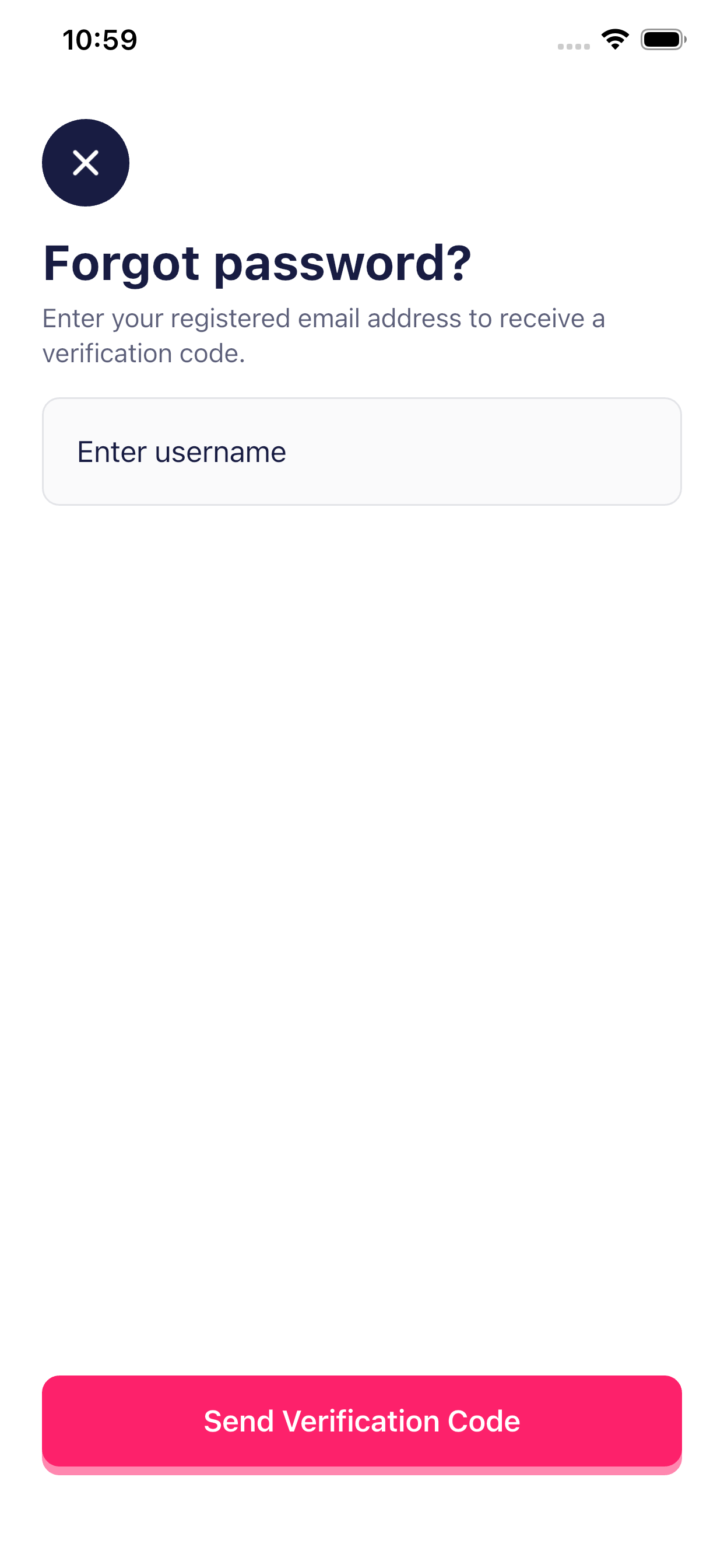
Step 1: Enter Username
- On the Login screen, tap Forgot Password
- Enter the student’s username
- This is the username provided by the school
- Tap Next
Step 2: OTP Sent to Parent’s Email
- An OTP (One-Time Password) will be sent to the registered parent email address
- This ensures account security
📩 Important for Parents:
Please check your inbox (and spam folder if needed).
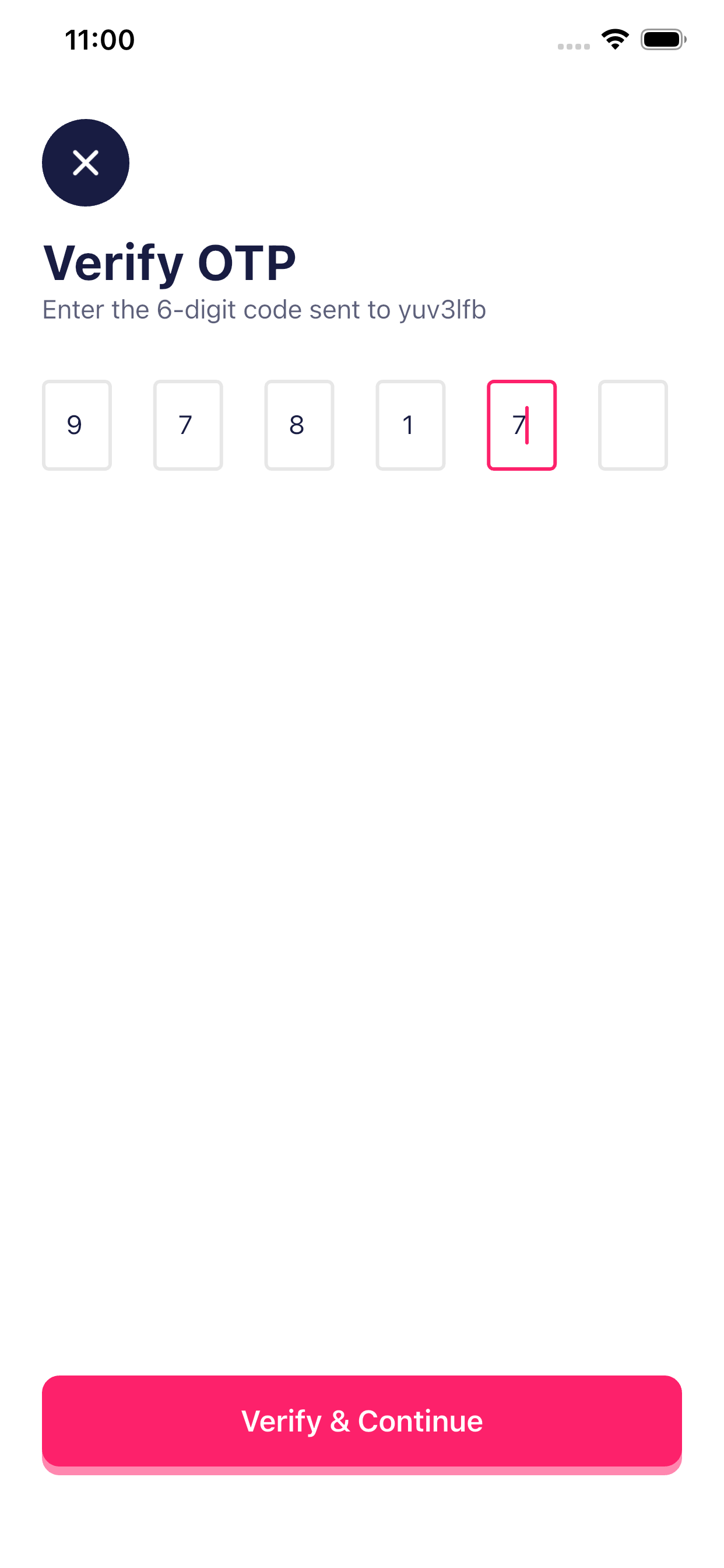
Step 3: Enter OTP
- Enter the OTP received on the parent’s email
- Tap Verify / Next
If the OTP is correct, the process will continue.
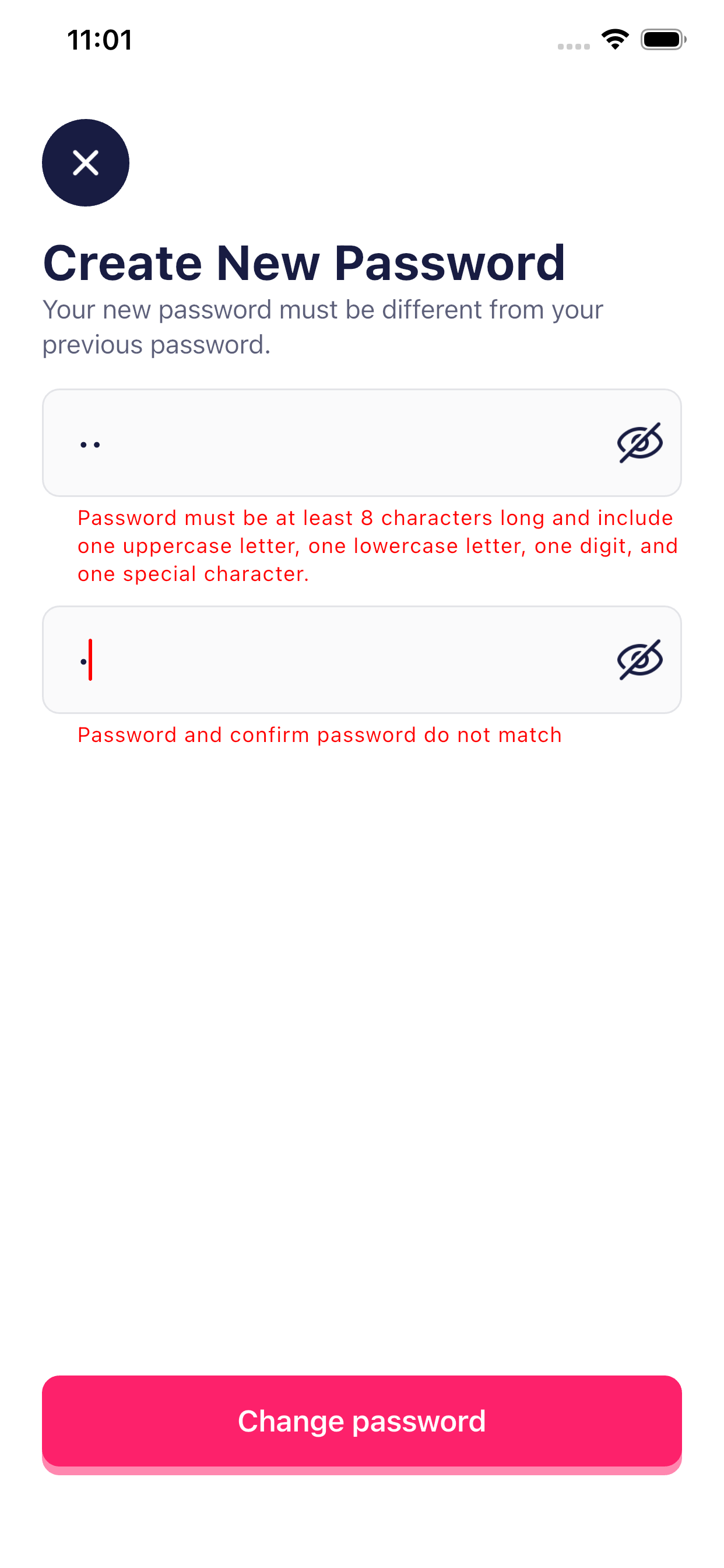
Step 4: Change Password
- A Change Password screen will appear
- Enter:
- New Password
- Confirm New Password
- Tap Submit
Step 5: Password Reset Successful
- The password will be updated successfully
- A confirmation message will be shown
3. Login After Password Change
- Go back to the Login screen
- Enter:
- Username / Email
- New Password
- Tap Login
The student can now access the app normally.
✅ Key Points for Parents
- OTP is sent only to the registered parent email
- OTP is valid for a limited time
- Choose a password that is easy for the child to remember but secure
- Do not share OTP or password with others
Security Note
If the OTP email is not received:
- Wait for a few minutes
- Check spam/junk folder
- Contact the school for support if needed
Learning Journey, Levels, Quizzes & Energy System
This section explains how students progress through their learning journey, how levels and quizzes work, and how the energy system functions inside the app.
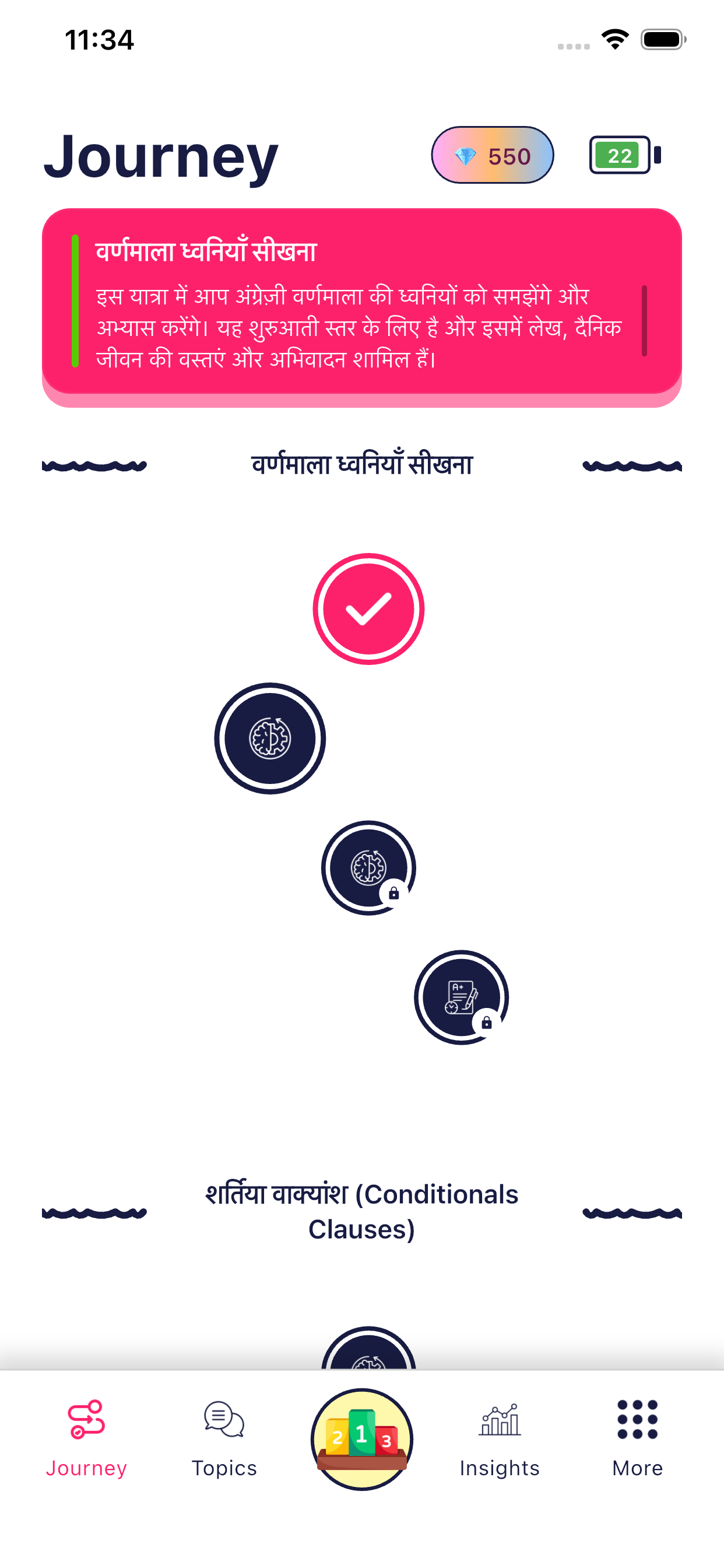
2. Journey Screen (Student View)
On the Journey screen, the student will see:
- Journey title and description
- A visual path showing multiple levels
- Locked 🔒 and unlocked levels
- Progress indicators
- Current energy and points
Understanding Level Icons
- ✅ Unlocked Level – Ready to start
- 🔒 Locked Level – Will unlock after completing previous levels
- 🧠 Lesson Icon – Learning content
- 📝 Quiz Icon – Practice or assessment activity
Students must complete levels in order.
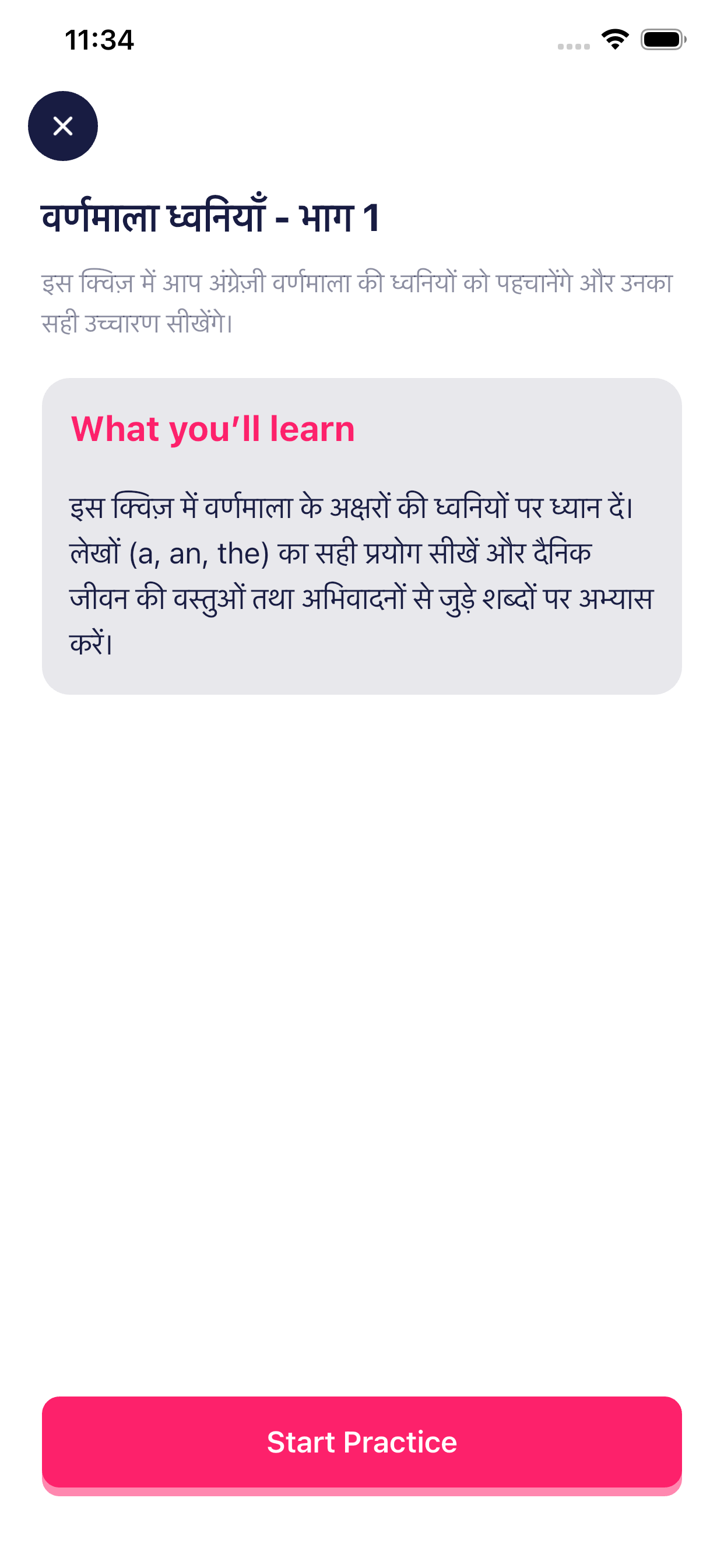
3. Level Details Screen
When a student taps on a level:
- A brief overview of what they will learn is shown
- The level content may include:
- Concept introduction
- Grammar explanation
- Practice quizzes
The student taps Start Practice to begin.
4. Lesson Flow Inside a Level
Each level usually follows this sequence:
1️⃣ Concept Introduction
- Explains the topic in simple language
- Uses examples for better understanding
- May include native-language support for clarity
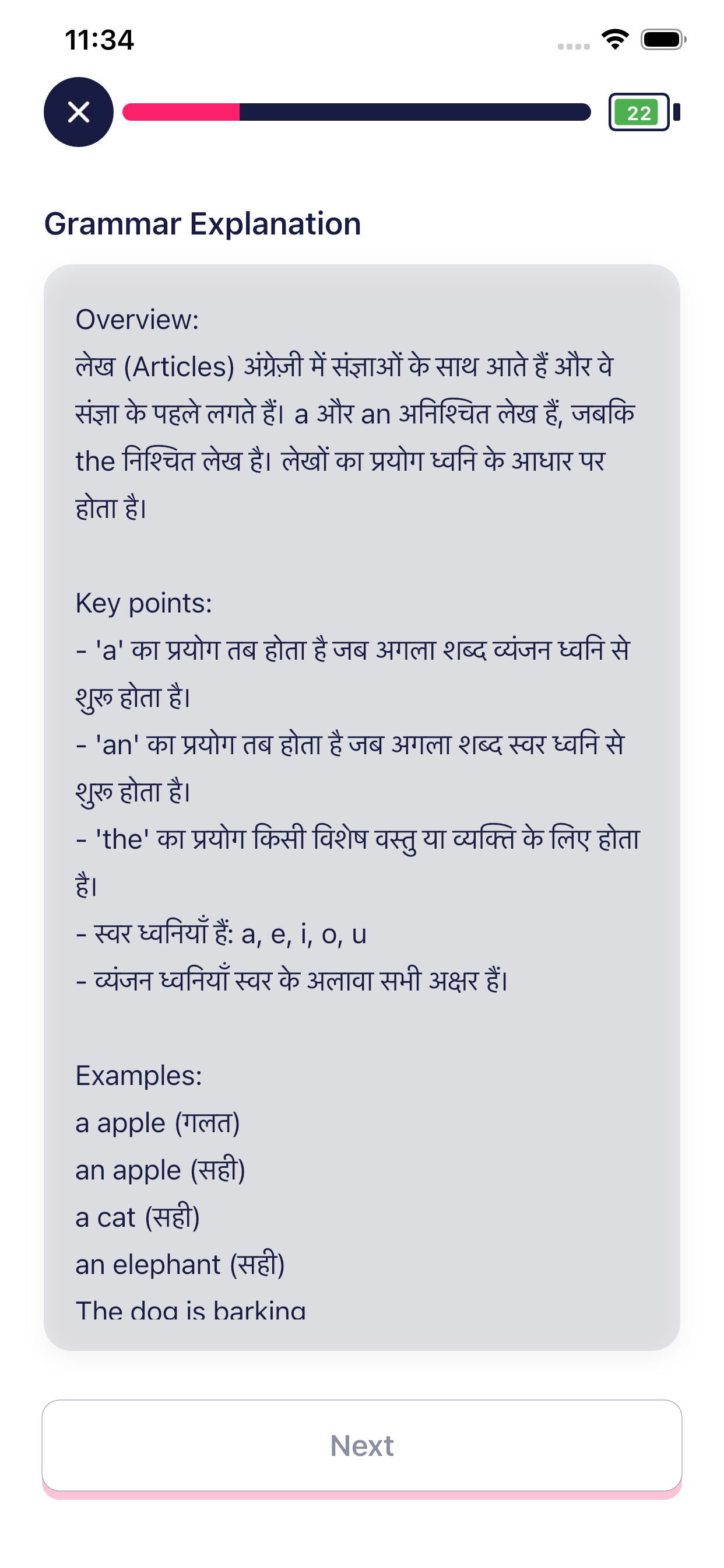
2️⃣ Grammar Explanation
- Explains grammar rules related to the lesson
- Shows key points
- Provides correct and incorrect examples
3️⃣ Practice Quizzes
After learning, the student practices using quizzes.
5. Quiz Types in the App
The app includes multiple types of quizzes to improve understanding and engagement.
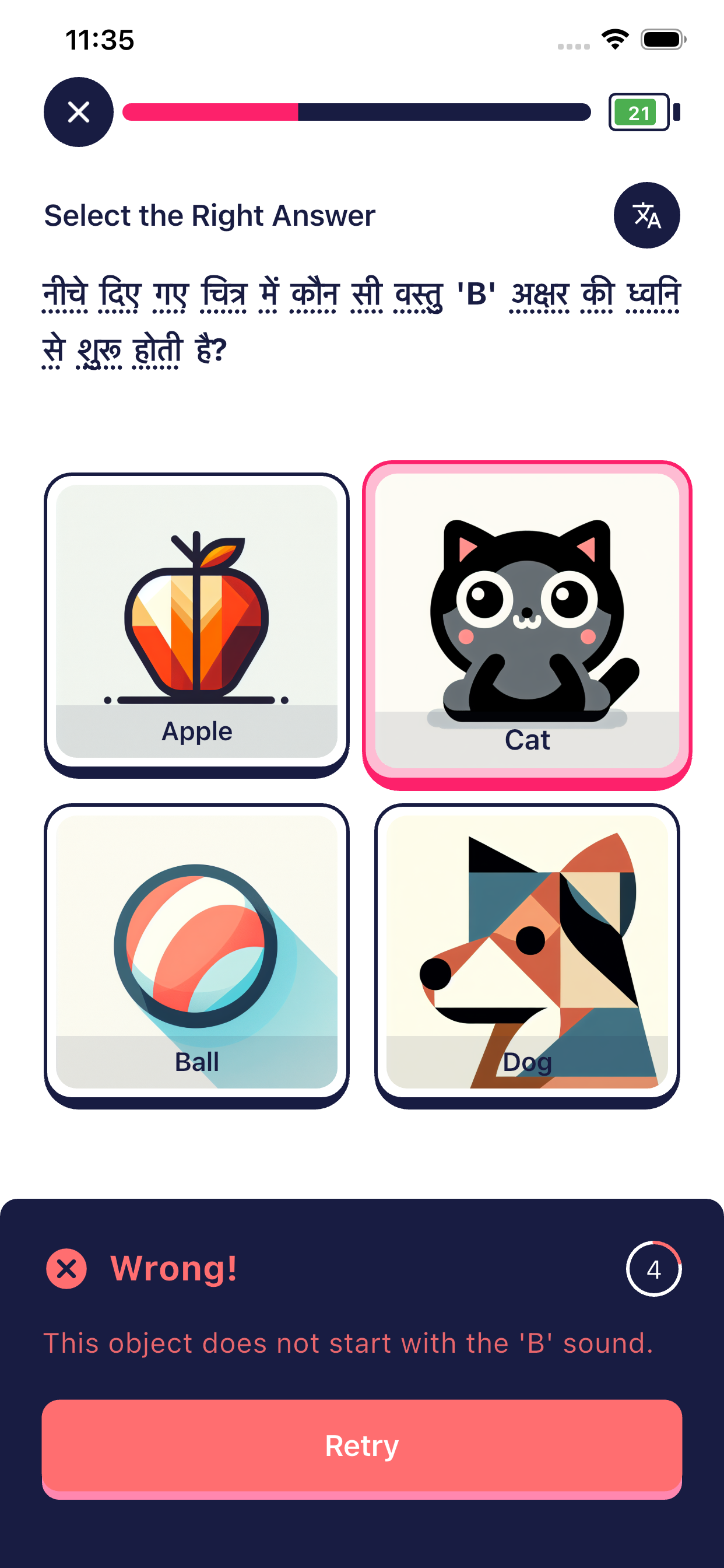
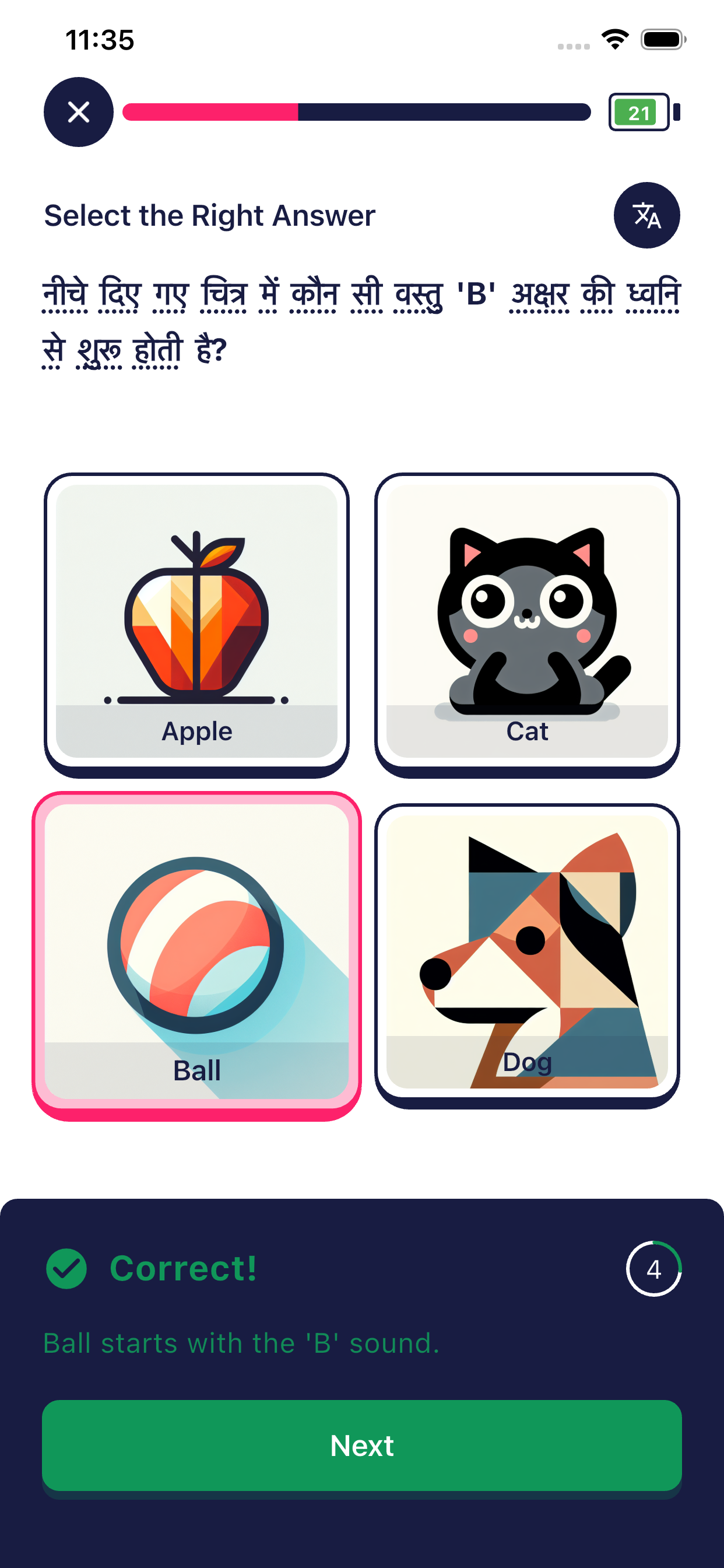
📝 Quiz Type 1: Select the Right Answer
- Student chooses the correct option from images or text
- Immediate feedback is shown:
- ❌ Wrong – explanation shown
- ✅ Correct – confirmation shown
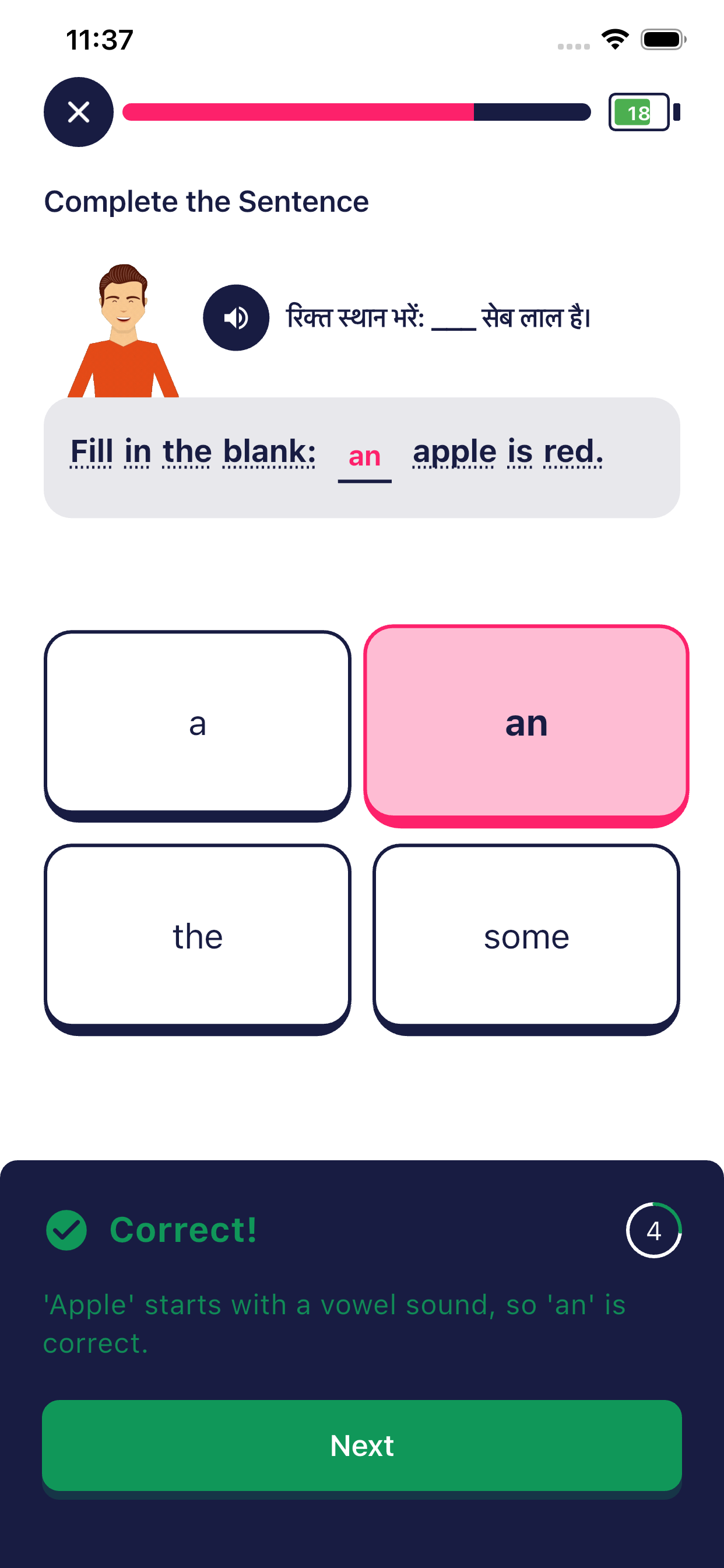
🧩 Quiz Type 2: Fill in the Blanks
- Student completes a sentence by selecting the correct word
- Used to test grammar and vocabulary understanding
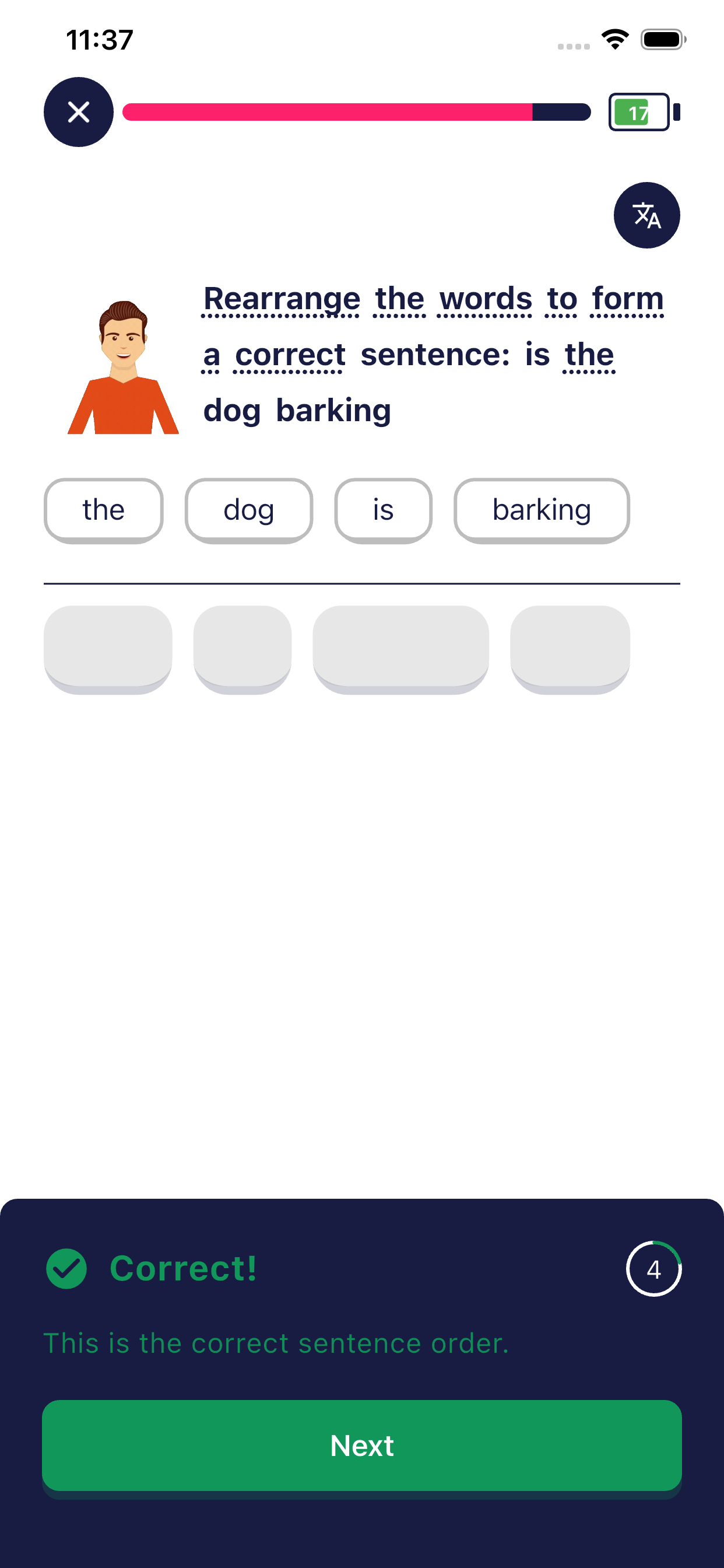
🔄 Quiz Type 3: Rearrange the Words
- Student rearranges words to form a correct sentence
- Improves sentence structure and grammar skills
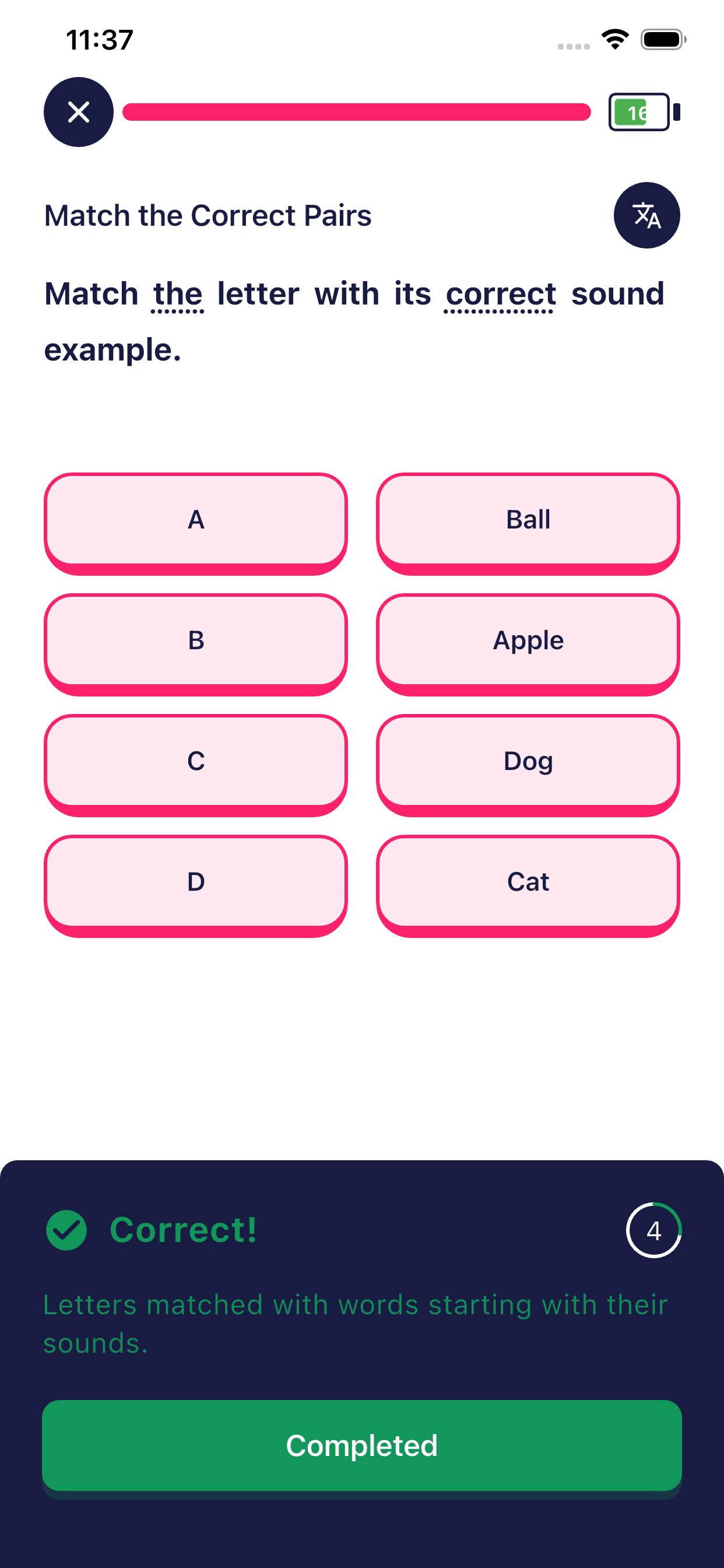
🔗 Quiz Type 4: Match the Correct Pairs
- Student matches letters or words with their correct examples
- Improves sound recognition and associations
6. Feedback System (Correct / Wrong)
- Correct answer
- Green highlight
- Encouraging message
- Wrong answer
- Red highlight
- Clear explanation
- Retry option available
This helps students learn from mistakes without fear.
7. Energy System (Important for Students)
What is Energy?
Energy is used to attempt quizzes.
How Energy Works:
- 🔋 1 energy is used per quiz attempt
- Energy is deducted:
- For correct answers
- For wrong answers
- ❗ If the student goes back without attempting, energy is not deducted
Why Energy Exists:
- Encourages focused learning
- Prevents random guessing
- Builds discipline in practice
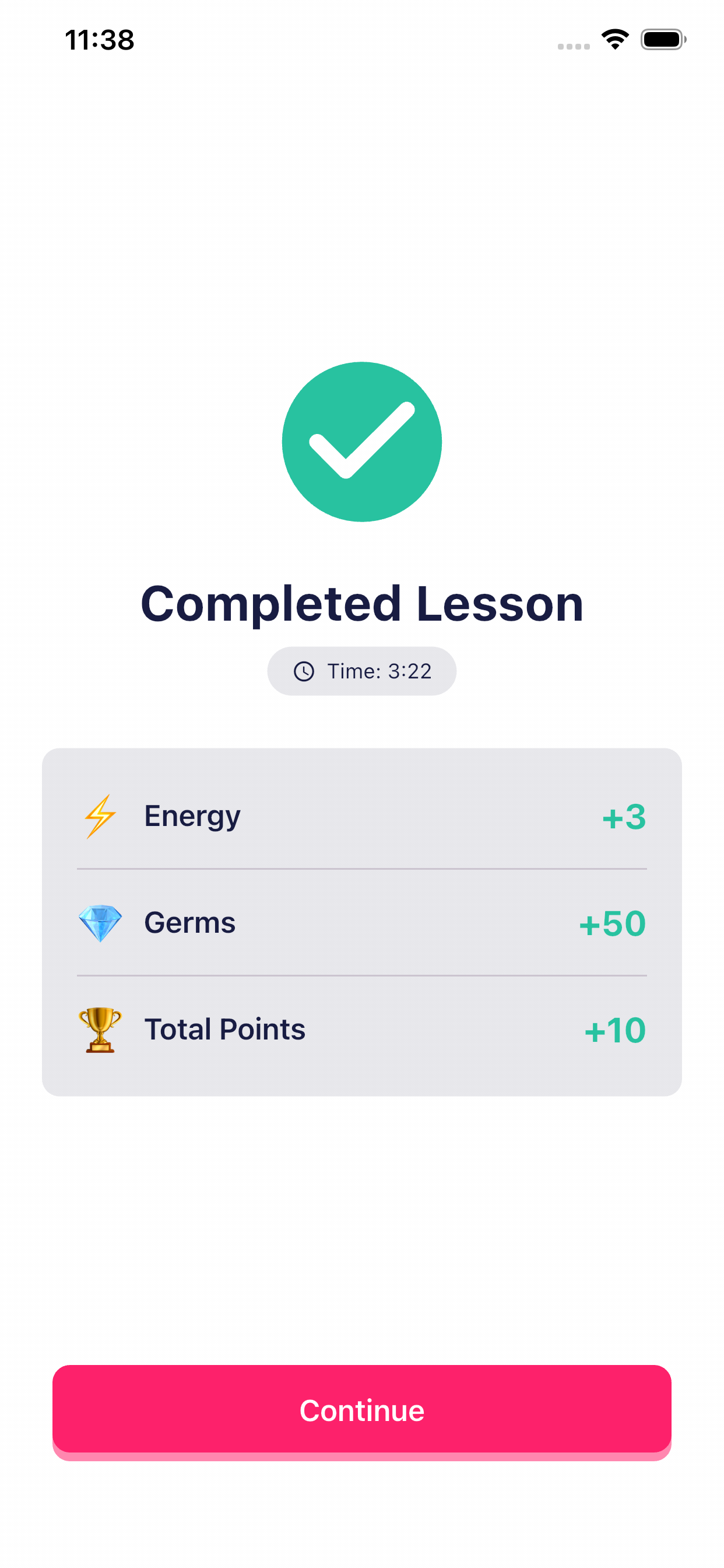
8. Completing a Lesson
After completing all activities in a level:
- A Completed Lesson screen is shown
- Student earns:
- ⚡ Energy
- 💎 Germs
- 🏆 Points
- Time spent on the lesson is displayed
Student taps Continue to move forward.
9. Progression & Unlocking Levels
- Completing a level unlocks the next level
- Progress is saved automatically
- Students can continue from where they left off
10. Key Benefits for Teachers & Parents
- Structured, step-by-step learning
- Multiple quiz formats for better engagement
- Immediate feedback improves understanding
- Energy system encourages mindful learning
- Personalized journey based on student needs
🏆 Leaderboard Module
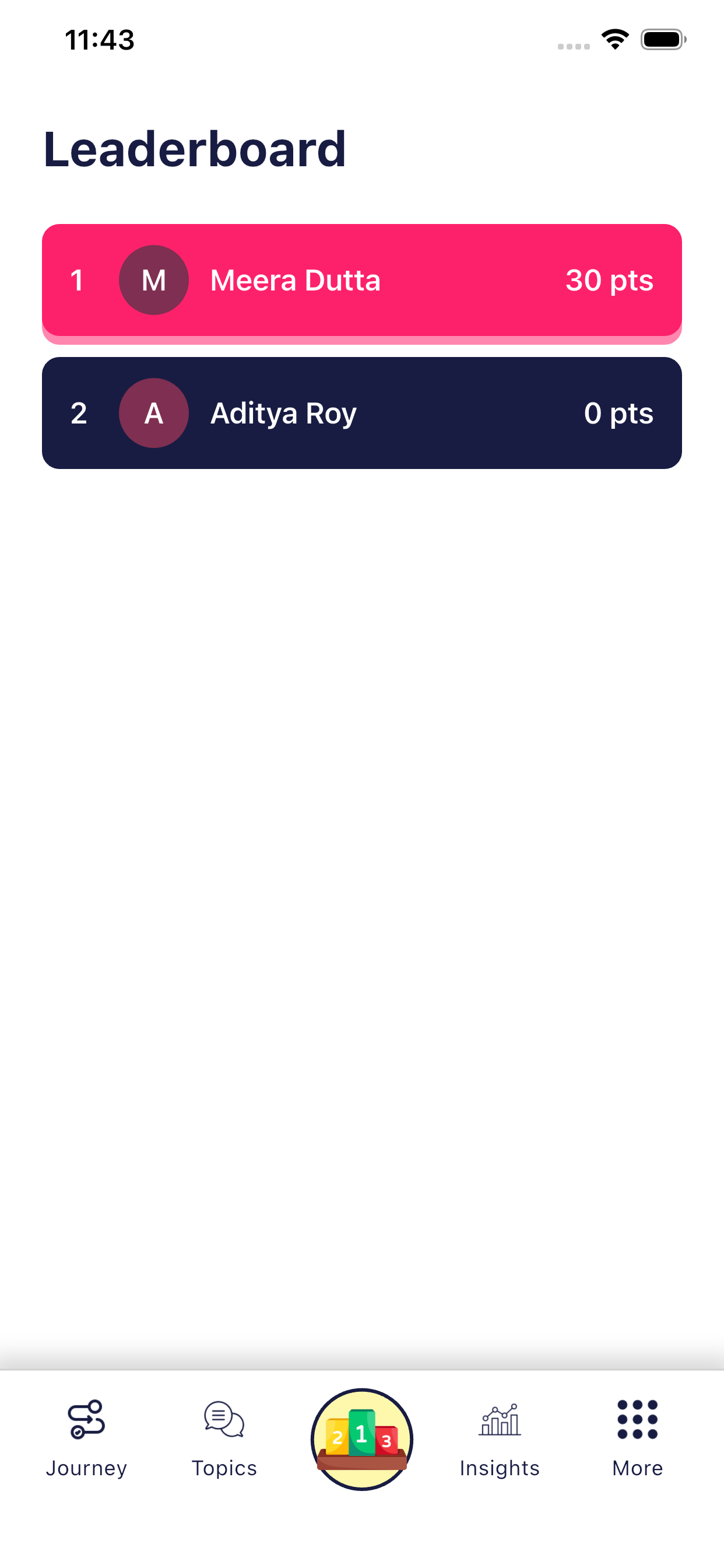
The Leaderboard shows how students are performing compared to others based on the points they earn while learning.
It helps motivate students through healthy competition and encourages consistent practice.
1. What is the Leaderboard?
The Leaderboard is a ranking screen that displays:
- Student names
- Points earned
- Rank position (1st, 2nd, 3rd, etc.)
Students are ranked based on their total points earned from:
- Completing lessons
- Attempting quizzes
- Correct answers
- Consistent learning activity
2. How the Leaderboard Works
Ranking Logic
- Students with higher points appear at the top
- Students with fewer points appear lower
- Rank updates automatically as students earn more points
Example:
- 🥇 Rank 1 – Highest points
- 🥈 Rank 2 – Second highest
- 🥉 Rank 3 – Third highest
3. Understanding the Leaderboard Screen
On the Leaderboard screen, you will see:
- Rank number (1, 2, 3, etc.)
- Student name
- Total points (pts) earned
Visual Indicators
- Top-ranked student is highlighted
- Lower ranks are shown below
- Easy-to-read list format
4. How Students Earn Points
Points are awarded when students:
- Complete lessons successfully
- Answer quiz questions correctly
- Finish levels and learning activities
The more actively and correctly a student practices, the more points they earn.
5. Why the Leaderboard is Important
Benefits for Students
- Encourages motivation and consistency
- Builds confidence through visible progress
- Promotes healthy competition
Benefits for Parents
- Easy way to understand a child’s engagement
- Shows effort and learning activity, not just results
Benefits for Teachers
- Quick overview of class participation
- Identifies top performers and students who may need support
Insights Module (Progress & Performance Tracking)
The Insights screen helps students track learning activity, consistency, time spent, and points earned simply and visually.
1. What is the Insights Screen?
The Insights screen provides a clear summary of:
- Daily learning activity
- Weekly practice consistency (streak)
- Total points earned
- Time spent learning
- Visual progress through graphs
This screen helps understand how regularly and effectively the student is practicing.
2. Daily Practice Streak
What is a Streak?
A streak is earned when a student completes at least one quiz in a day.
How the Streak Works:
- If the student completes minimum one quiz in a day, that day is marked as completed
- Each completed day adds to the weekly streak
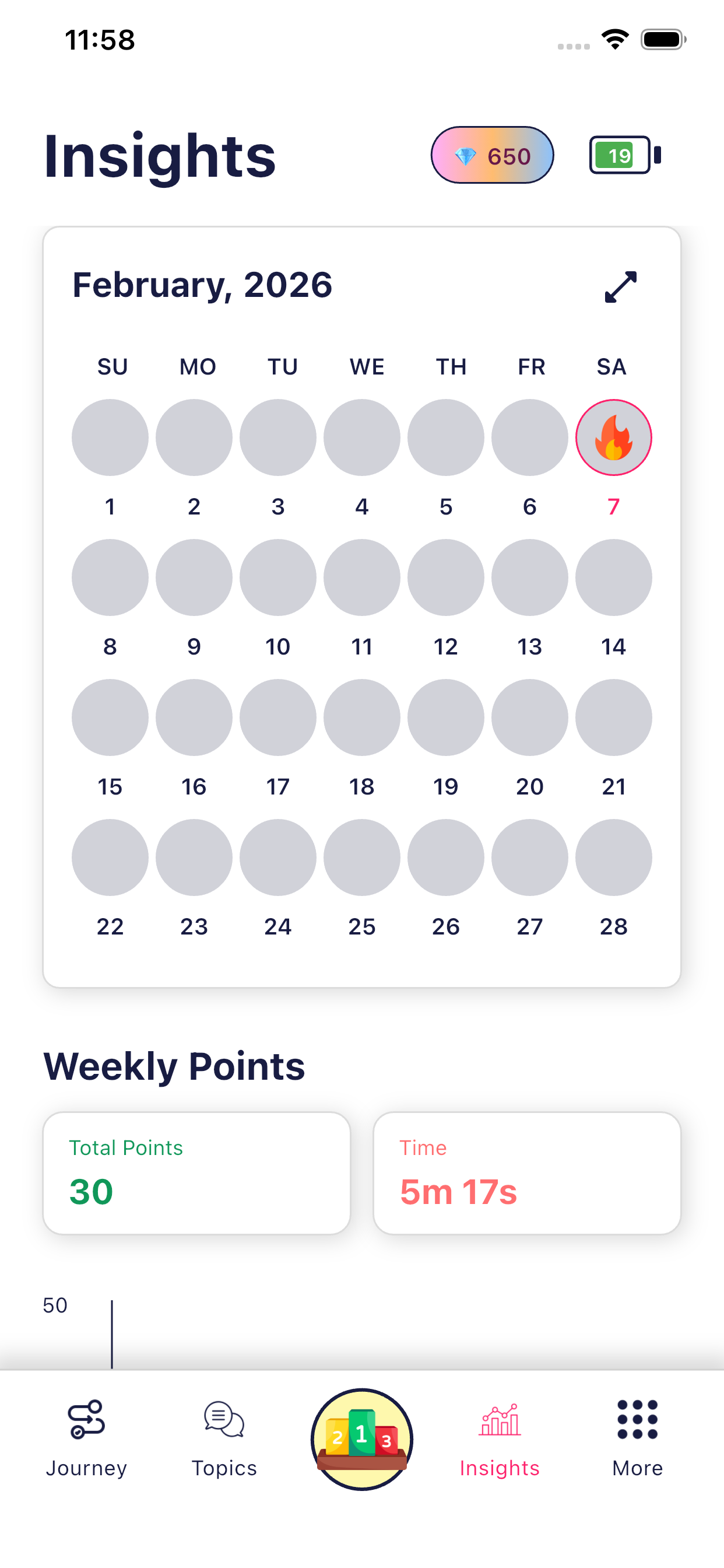
- The streak is shown using day-wise indicators (Sun to Sat)
- A highlighted or flame icon 🔥 shows an active streak day
📌 Important Note:
If no quiz is attempted on a day, the streak for that day will not be counted.
3. Weekly Practice Overview
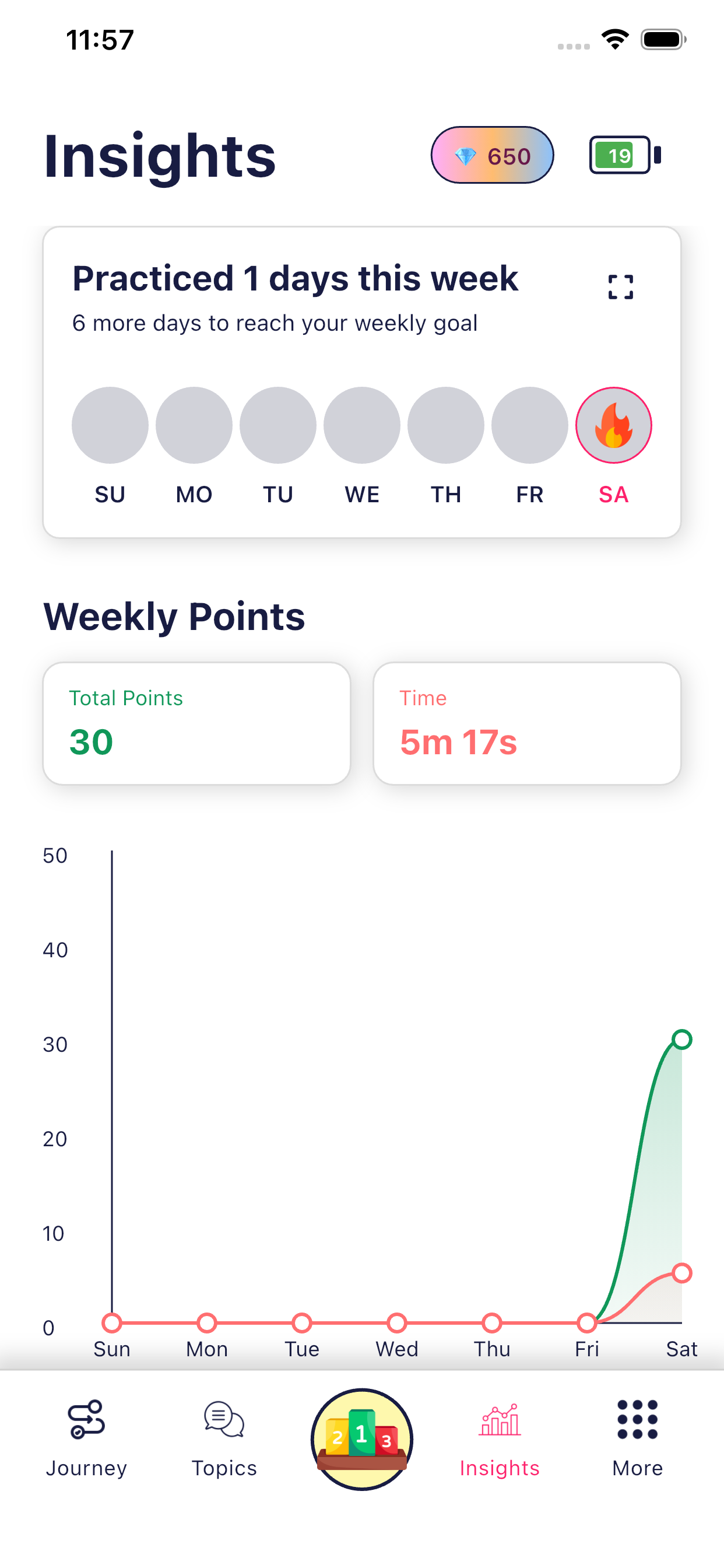
At the top of the Insights screen:
- The app shows how many days the student practiced this week
- It also shows how many more days are required to reach the weekly goal
Example:
“Practiced 1 day this week – 6 more days to reach your weekly goal”
This motivates students to practice daily and consistently.
4. Weekly Points Summary
Total Points
- Displays the total points earned in the current week
- Points are earned by:
- Completing quizzes
- Correct answers
- Completing lessons
Higher points reflect active learning and engagement.
5. Time Spent Learning
Daily & Weekly Time Tracking
- The app tracks time spent practicing
- Time is shown in:
- Minutes and seconds
- Weekly total format
Example:
Time: 5m 17s
This helps parents and teachers understand how much time the student is actually studying, not just opening the app.
6. Progress Graph (Visual Performance)
The graph at the bottom shows:
- Points progression over the days of the week
- Time spent learning day by day
- X-axis: Days (Sun → Sat)
- Y-axis: Points / Time
How to Read the Graph:
- Rising graph = increased learning activity
- Flat line = no activity on that day
- Sharp increase = higher engagement or longer study time
This visual makes it easy to spot:
- Active days
- Missed days
- Improvement trends
👤 Student Profile & Account Module
The Profile & Account section allows students to view learning progress, manage basic account details, and control account actions such as logout or account deletion.
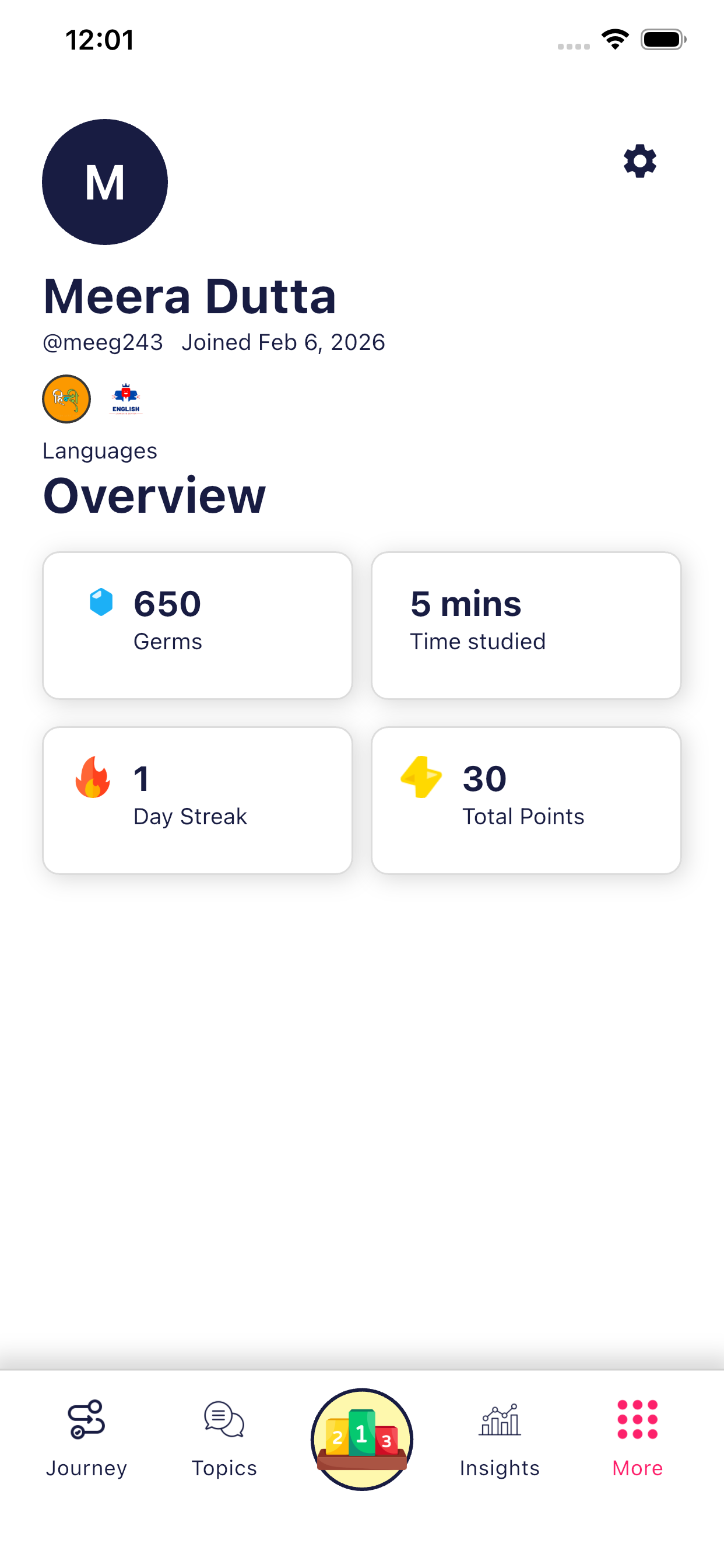
1. Profile Overview Screen
The Profile Overview screen gives a quick summary of the student’s learning activity and achievements.
Information Shown on the Profile Overview
👤 Student Details
- Profile Icon / Avatar
- Student Name
- Username
- Join Date (when the account was created)
- Languages being learned
This helps identify the student and their learning setup.
📊 Learning Summary Cards
The overview section displays key learning statistics:
💎 Germs
- Total germs earned through lessons and quizzes
- Used as a reward and motivation system
⏱️ Time Studied
- Total time the student has spent learning
- Helps track real learning effort
🔥 Day Streak
- Number of consecutive days the student has completed at least one quiz
- Encourages daily practice and consistency
🏆 Total Points
- Total points earned from quizzes and lessons
- Used for ranking on the leaderboard
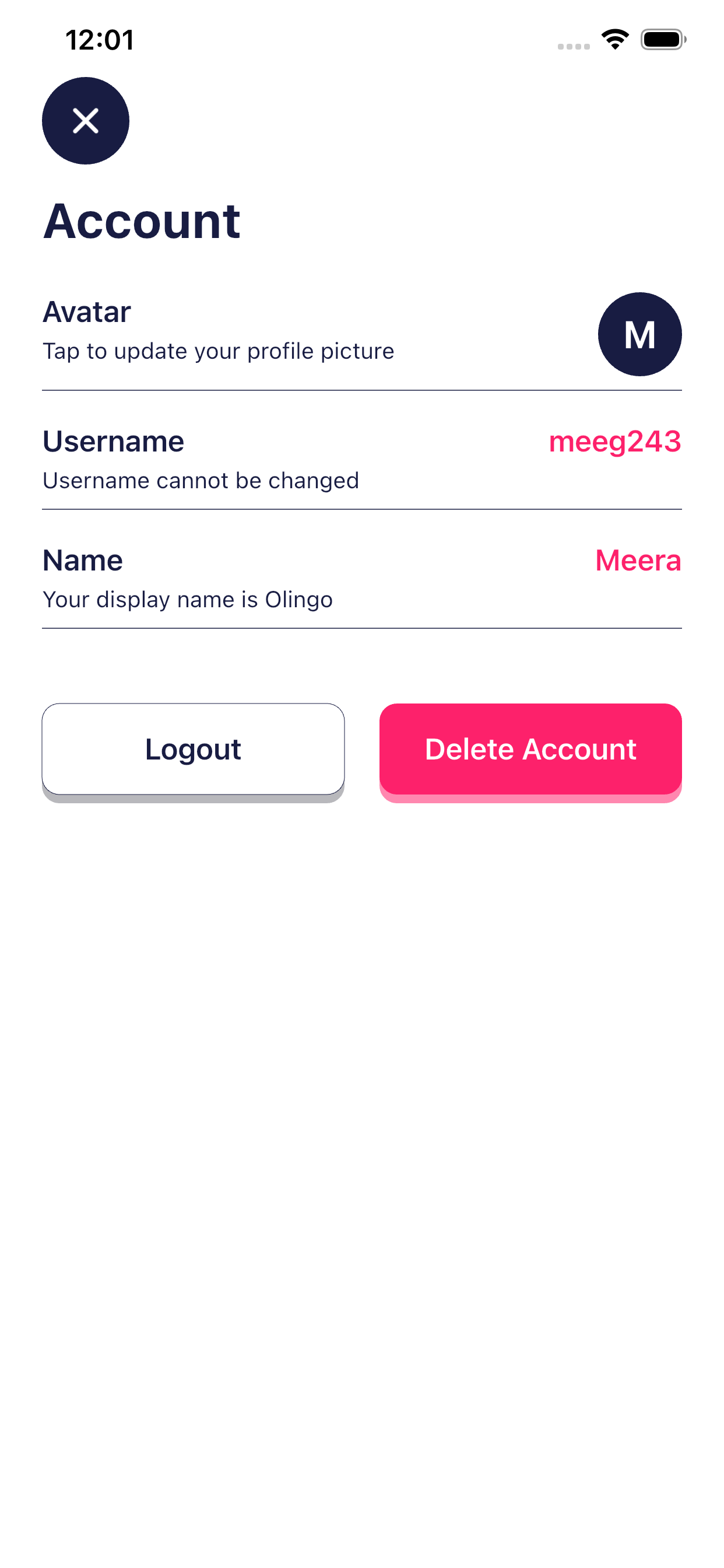
2. Account Settings Screen
From the Profile screen, students can open Account Settings to manage basic account details.
🖼️ Avatar
- Tap on the avatar to update the profile picture
- Helps personalize the student’s account
👤 Username
- Displays the student’s unique username
- Username cannot be changed
- Assigned during account creation by the school
✏️ Name
- Displays the student’s name
- Used across the app for identification
3. Account Actions
🚪 Logout
- Logs the student out of the app
- Student can log in again using their username and password
❌ Delete Account
- Permanently deletes the student account
- All progress, points, and data will be removed
⚠️ Important Note for Parents:
- This action is irreversible
- Use only if the student will no longer use the app
- Recommended to contact the school before deleting the account
Chatbot
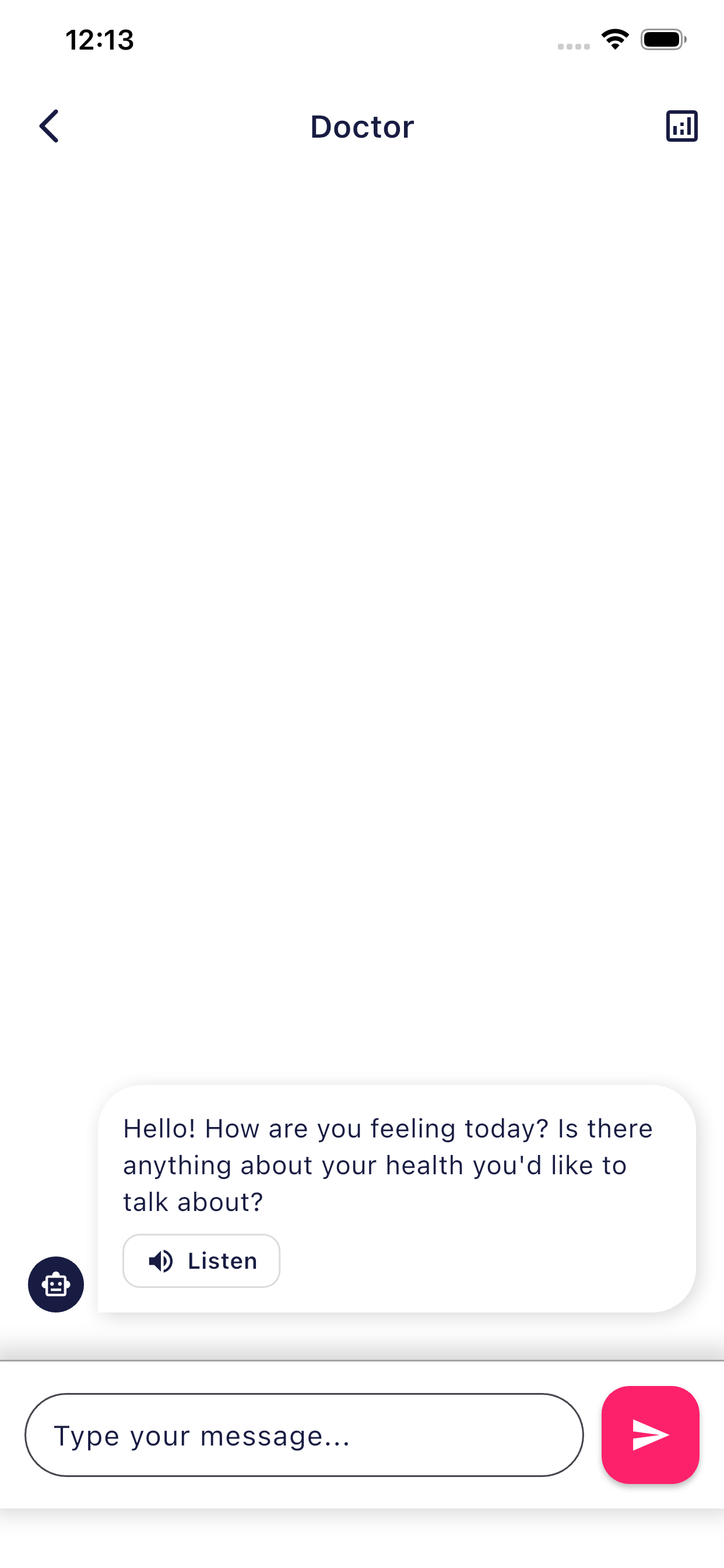
This chatbot allows students to communicate with an AI in a safe and guided environment to improve their language communication skills.
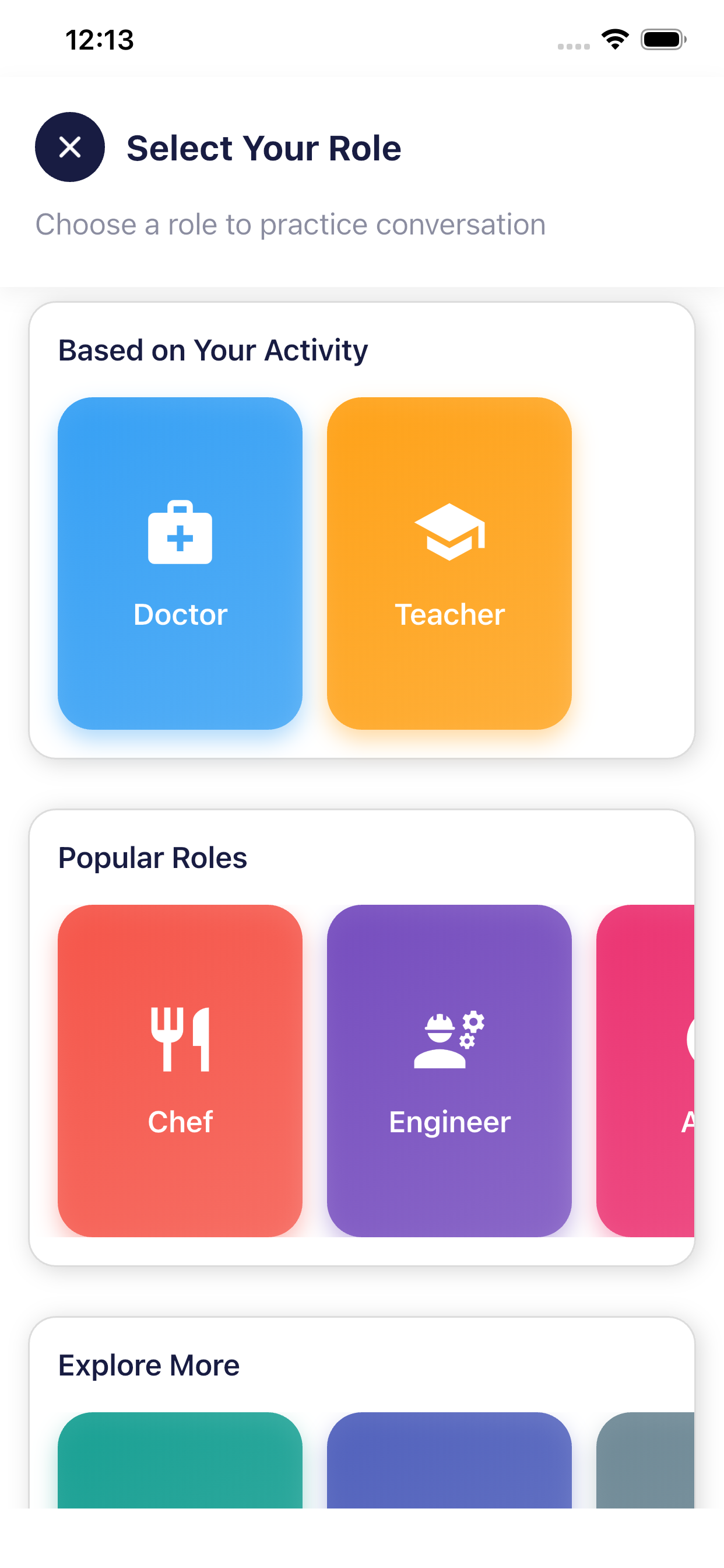
Students can practice conversations by selecting different real-life roles such as teacher, doctor, chef, engineer, and more.
Each role is designed to simulate practical, everyday situations, helping students learn how to speak naturally and confidently.
The chatbot responds intelligently, guiding students to form correct sentences and use appropriate vocabulary.
Listening and response features help improve pronunciation and comprehension.
Regular practice through role-based conversations builds confidence and prepares students for real-world communication.
Vocabulary Module
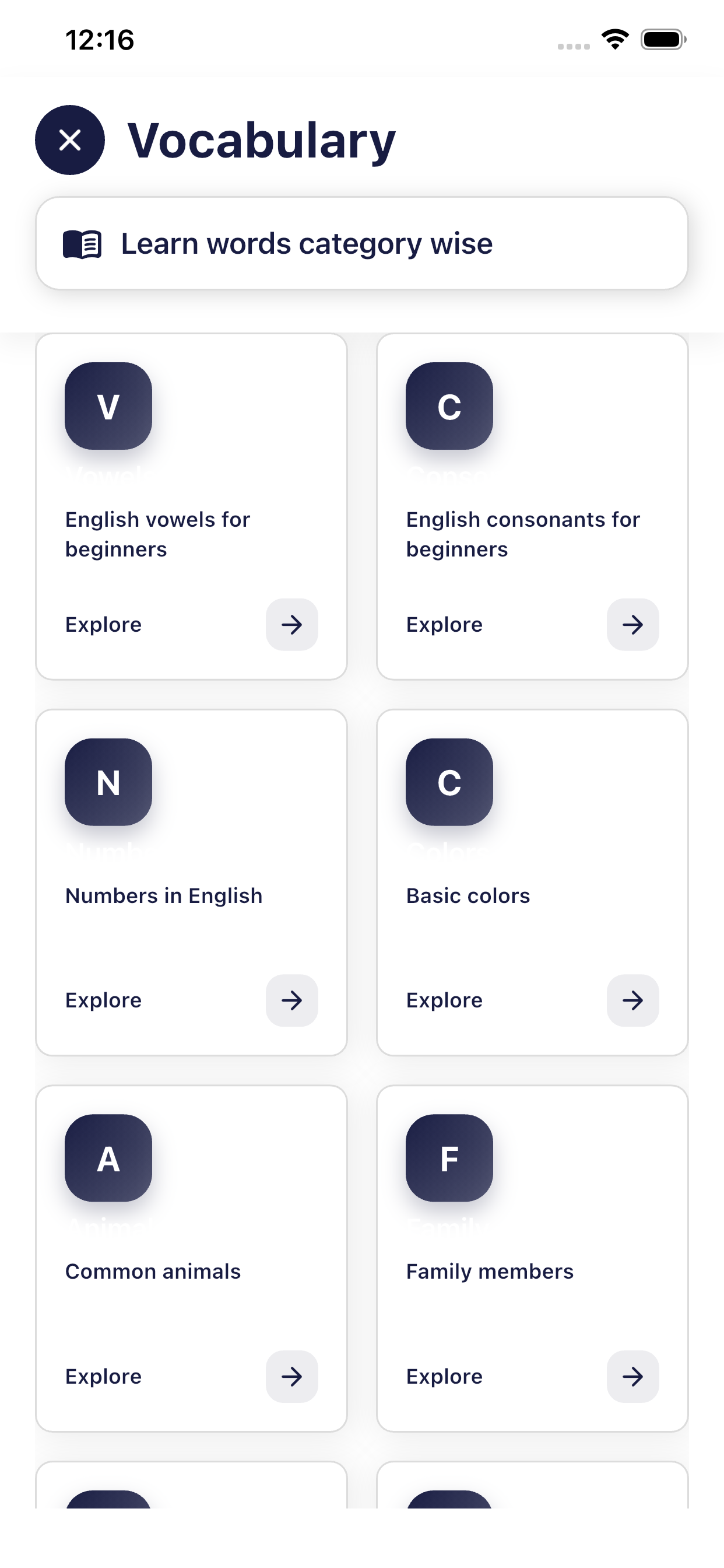
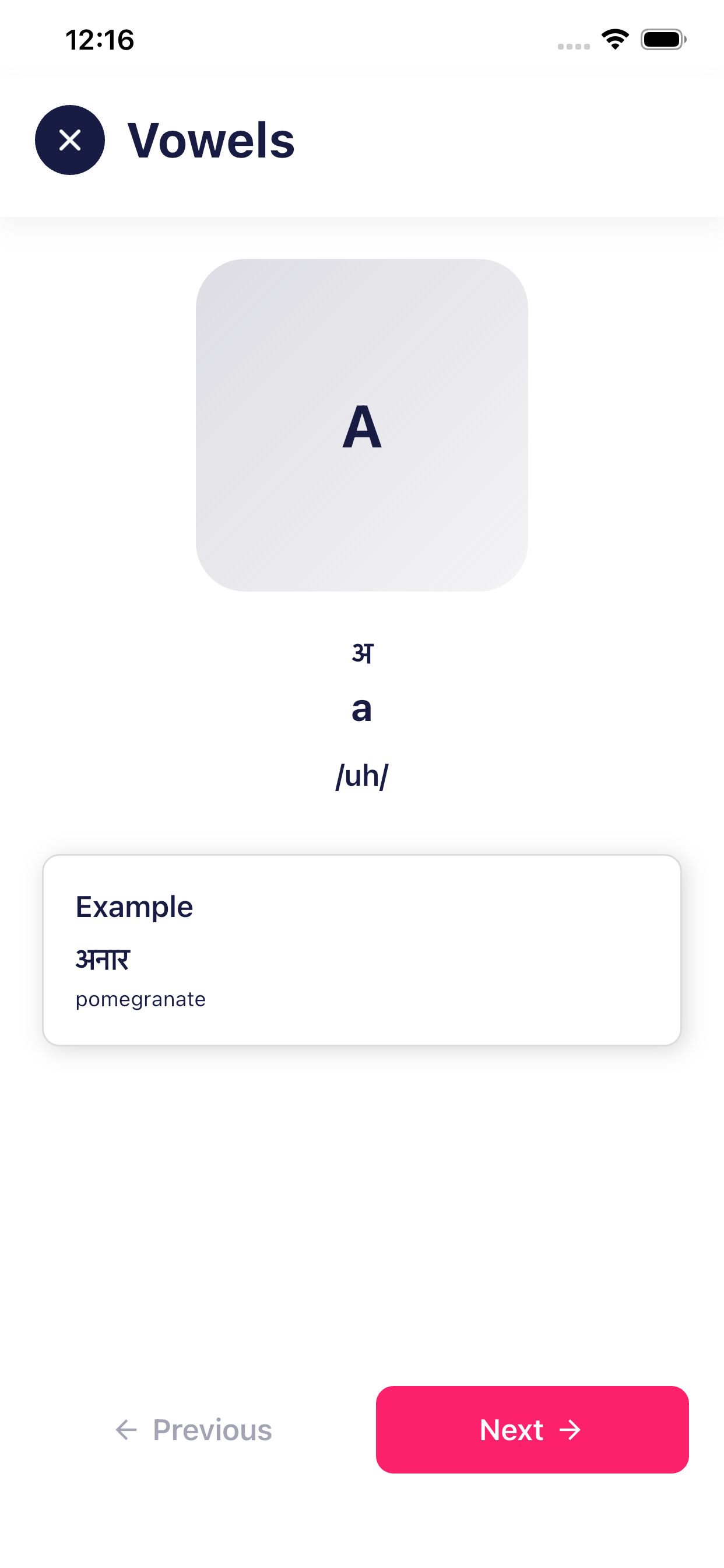
The Vocabulary section helps students learn basic and commonly used English words in an easy and structured way.
Words are organized category-wise, such as vowels, consonants, numbers, colors, animals, family members, and more.
This section is common for all students and does not depend on level or course selection.
It focuses on building a strong foundation of basic words needed for daily communication.
Students can explore each topic at their own pace to improve word recognition and understanding.
This module supports early learning and helps students gain confidence in basic vocabulary.
Topics & Learning Modules
The Topics module allows students to learn specific subjects in a structured and guided way, with related content, explanations, and quizzes.
1. What is the Topics Module?
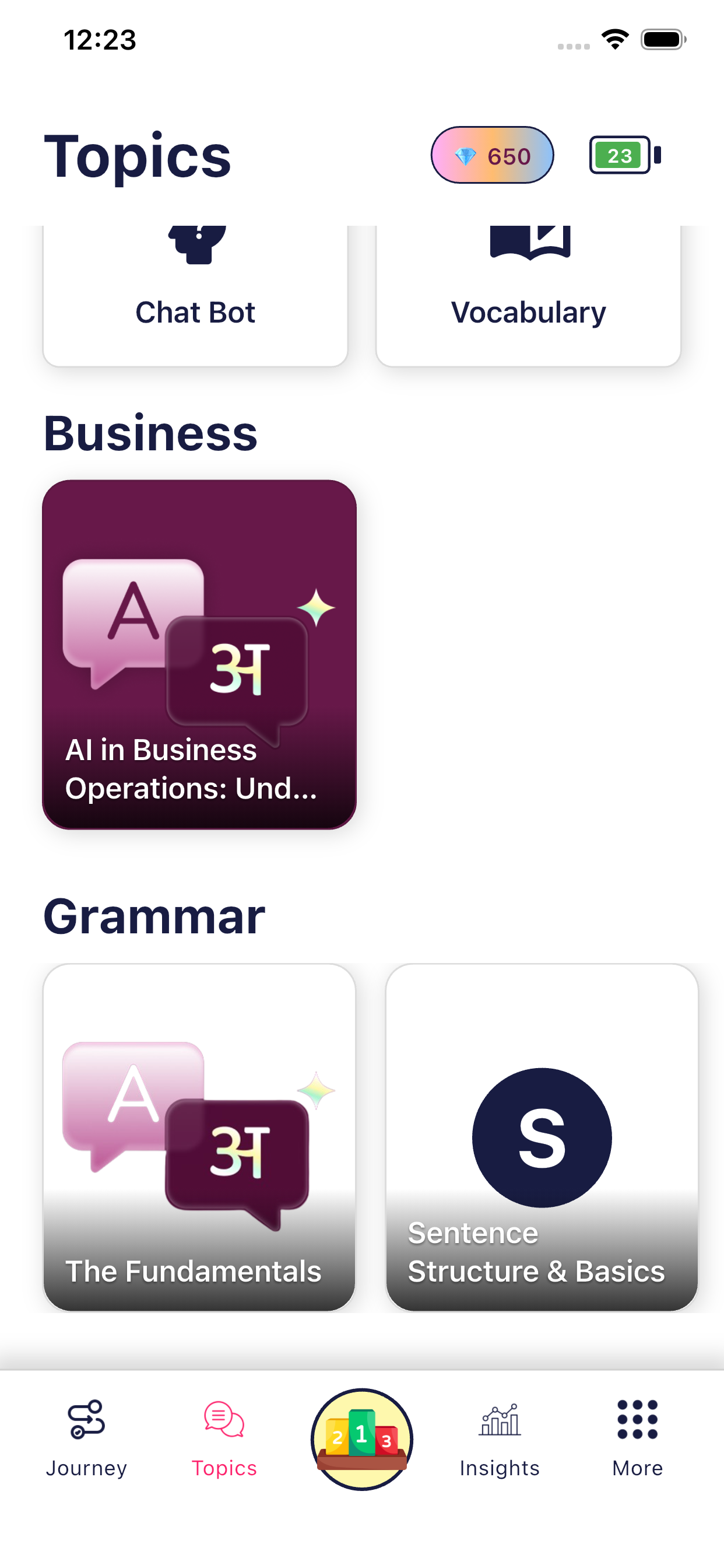
The Topics section contains different learning topics grouped under categories such as:
- Business
- Grammar
- Other learning areas
Each topic focuses on a specific subject and helps students learn step by step.
2. Selecting a Topic
- Students can browse through different topics displayed as cards
- Each topic represents a learning module
- Topics may belong to different categories based on subject or difficulty
Once a topic is selected, the student is taken to the Topic Detail Screen.
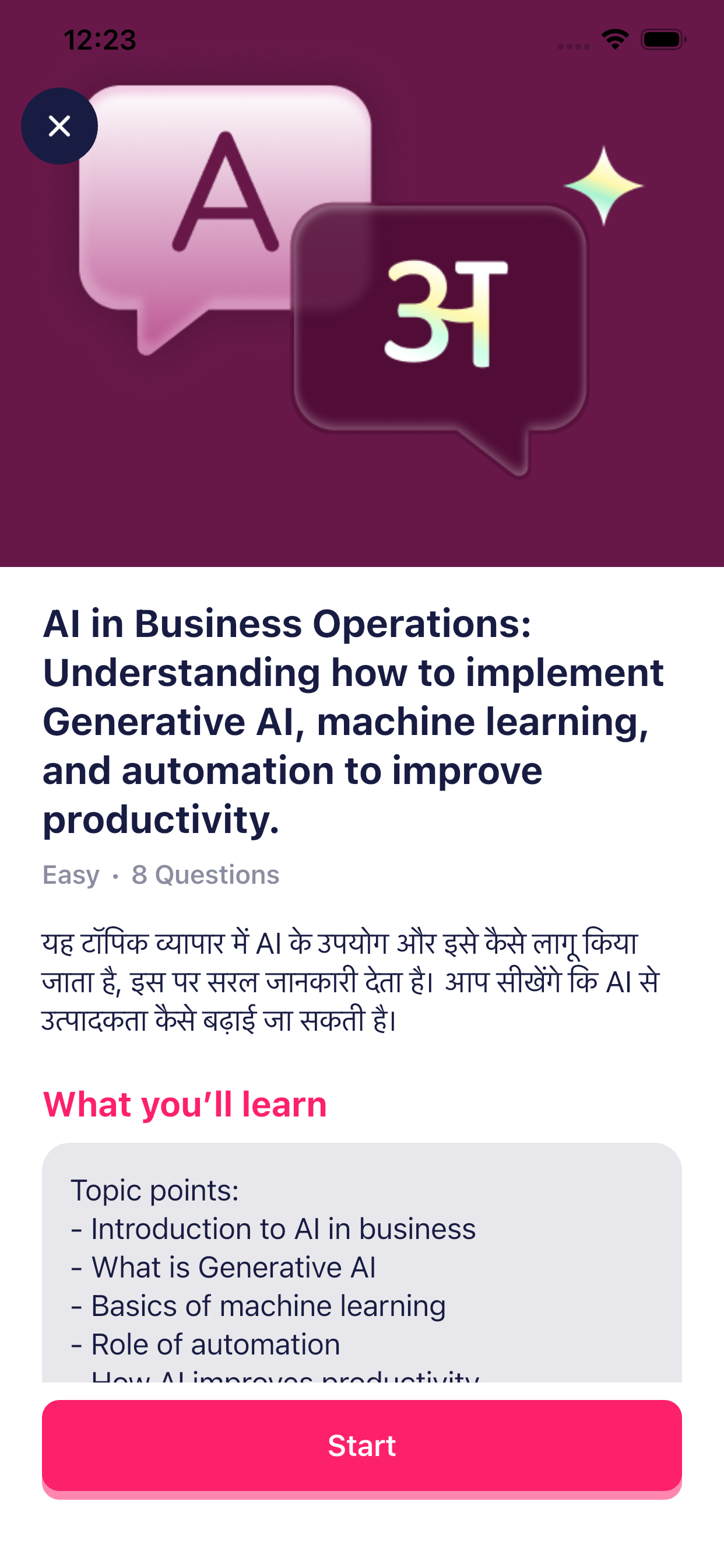
3. Topic Detail Screen
The Topic Detail screen provides complete information about the selected topic before starting.
Information Shown on This Screen
📖 Topic Description
- A short explanation of what the topic is about
- Shown in simple language for easy understanding
- The explanation is also available in the student’s native language
🎯 Difficulty Level
- Indicates the level of the topic (e.g., Easy)
- Helps students and parents understand suitability
❓ Quiz Information
- Shows how many questions are included in the quiz
- Quizzes are designed based on the topic content
- Helps check understanding after learning
4. What You’ll Learn Section
This section clearly explains what the student will learn from the topic.
Examples of Learning Points:
- Key concepts related to the topic
- Practical understanding
- Real-life usage examples
- Topic-specific vocabulary
This helps students and parents know the learning outcome in advance.
5. Learning Content & Categories
Inside a topic:
- Content is organized into different categories or sections
- Each section focuses on a specific part of the topic
- Content may include explanations, examples, and practice material
This makes learning clear, focused, and easy to follow.